


What Is a Test Cycle and Why It Matters
A test cycle is a planned, organized execution of a specific set of test cases. Think of it as a "testing sprint" — a defined period where your team runs a group of tests, records the results, and reports on the outcome.
Why not just run test cases individually?
You could execute test cases one by one, whenever you feel like it. But without test cycles, you lose critical capabilities:
- •No context: When was this test last run? Was it part of the Sprint 5 release or the hotfix?
- •No progress tracking: How far along is testing? When will we be done?
- •No comparison: Did quality improve between releases?
- •No accountability: Who was supposed to test what, and did they finish?
Test cycles solve all of these problems by grouping test executions into a named, time-bound batch with assigned testers and trackable progress.
Real-World Analogy
If test cases are the exam questions, a test cycle is the exam itself. You select which questions to include, assign the exam to students, set a deadline, administer it, collect the results, and grade them. Running test cases without a cycle is like handing out exam questions randomly with no due date — you'll never know where you stand.
Common Types of Test Cycles
| Type | Purpose | When to Use |
|---|---|---|
| Sprint Test Cycle | Test new features from the current sprint | End of each sprint |
| Regression Cycle | Verify existing features still work | Before every release |
| Smoke Test Cycle | Quick check that critical paths work | After every deployment |
| UAT Cycle | Business stakeholder acceptance testing | Before production release |
| Hotfix Verification | Verify a specific bug fix | After hotfix deployment |
In BesTest, all of these follow the same workflow. The difference is in which test cases you include and who executes them. This tutorial will walk you through creating any type of cycle, starting with a sprint test cycle as our example.
What You'll Build in This Tutorial
By the end of this guide, you'll have created a complete test cycle — with test cases assigned to testers, executed with pass/fail results, and a clear report showing your testing status. Let's get started.
Planning Your Test Cycle
Good test cycles start with planning. Before you click "Create," take a few minutes to think through what you're testing, why, and who's involved. This upfront planning saves time and confusion during execution.
Define the Scope
What is this test cycle for? Be specific:
- •Bad scope: "Test everything"
- •Good scope: "Verify all new features from Sprint 7 and regression-test the checkout flow"
Write down exactly what's in scope and what's not. This helps testers stay focused and prevents scope creep during execution.
Identify the Test Cases
Based on your scope, determine which test cases need to be included. Sources of test cases:
- •New feature tests: Test cases written for stories completed in this sprint
- •Regression tests: Existing test cases for areas that might be affected by the changes
- •Bug verification tests: Test cases for bugs that were fixed and need re-verification
- •Smoke tests: A minimal set of critical-path tests to verify basic functionality
If you've set up Smart Collections in BesTest, this step becomes much faster. You can pull in an entire "Regression Suite" collection or a "Sprint 7 Features" collection instead of selecting tests one by one.
Assign Testers
Decide who will execute which tests. Consider:
- •Expertise: Assign domain-specific tests to testers who know that area
- •Load balancing: Distribute tests evenly across available testers
- •Availability: Check who's available during the cycle timeframe
- •Independence: For important cycles, assign tests to someone who didn't develop the feature
Set the Timeline
Every test cycle needs a start date and target end date. Be realistic:
- •Count the total number of test cases
- •Estimate execution time per test (5-15 minutes for most manual tests)
- •Factor in tester availability (they have other work too)
- •Add buffer for defect triage and re-testing
A Quick Planning Formula:
Cycle duration = (Total test cases × Avg. minutes per test) / (Available tester hours per day × Number of testers)For example: 50 test cases × 10 minutes = 500 minutes. With 2 testers available for 3 hours each per day = 360 minutes/day. So the cycle needs roughly 1.5 days of execution, plus buffer for defects.
Prepare the Environment
Before launching the cycle, confirm:
- •The test environment is deployed with the correct build
- •Test data is loaded and ready
- •Testers have access credentials
- •Any dependent systems or integrations are available
Creating a Test Cycle in BesTest
With your plan in hand, let's create the test cycle in BesTest. The process is straightforward and takes just a couple of minutes.
Step-by-Step: Create the Cycle
- •Navigate to your Jira project and open BesTest from the project menu bar
- •Go to the "Test Cycles" section
- •Click the "Create Test Cycle" button
- •Fill in the cycle details:
| Field | What to Enter | Example |
|---|---|---|
| Name | A clear, descriptive name | Sprint 7 — Payment Module Tests |
| Description | Scope and objectives | Verify new payment gateway integration and regression-test existing checkout flow |
| Start Date | When testing begins | 2026-03-03 |
| End Date | Target completion date | 2026-03-07 |
- •Switch to the "Test Cases" tab to add test cases and Smart Collections
- •Assign testers to the test cases
- •Click "Save" to create the cycle
The entire create flow lets you set up everything — details, test cases, collections, and tester assignments — before saving. You can also save an empty cycle and add test cases later if you prefer.
After saving, set the cycle status to "Ready to Execute" when you want testers to begin. Until then, execution is blocked — giving you time to finalize the setup.
Naming Conventions That Scale
As you create more cycles, good naming becomes important. Here are naming patterns that work well:
- •Sprint cycles:
Sprint [#] — [Module/Feature] Tests - •Regression cycles:
Regression — Release [version] — [date] - •UAT cycles:
UAT — Release [version] — [stakeholder group] - •Hotfix cycles:
Hotfix — [JIRA-ID] — [brief description]
Consistent naming makes it easy to find historical cycles and compare results across releases.
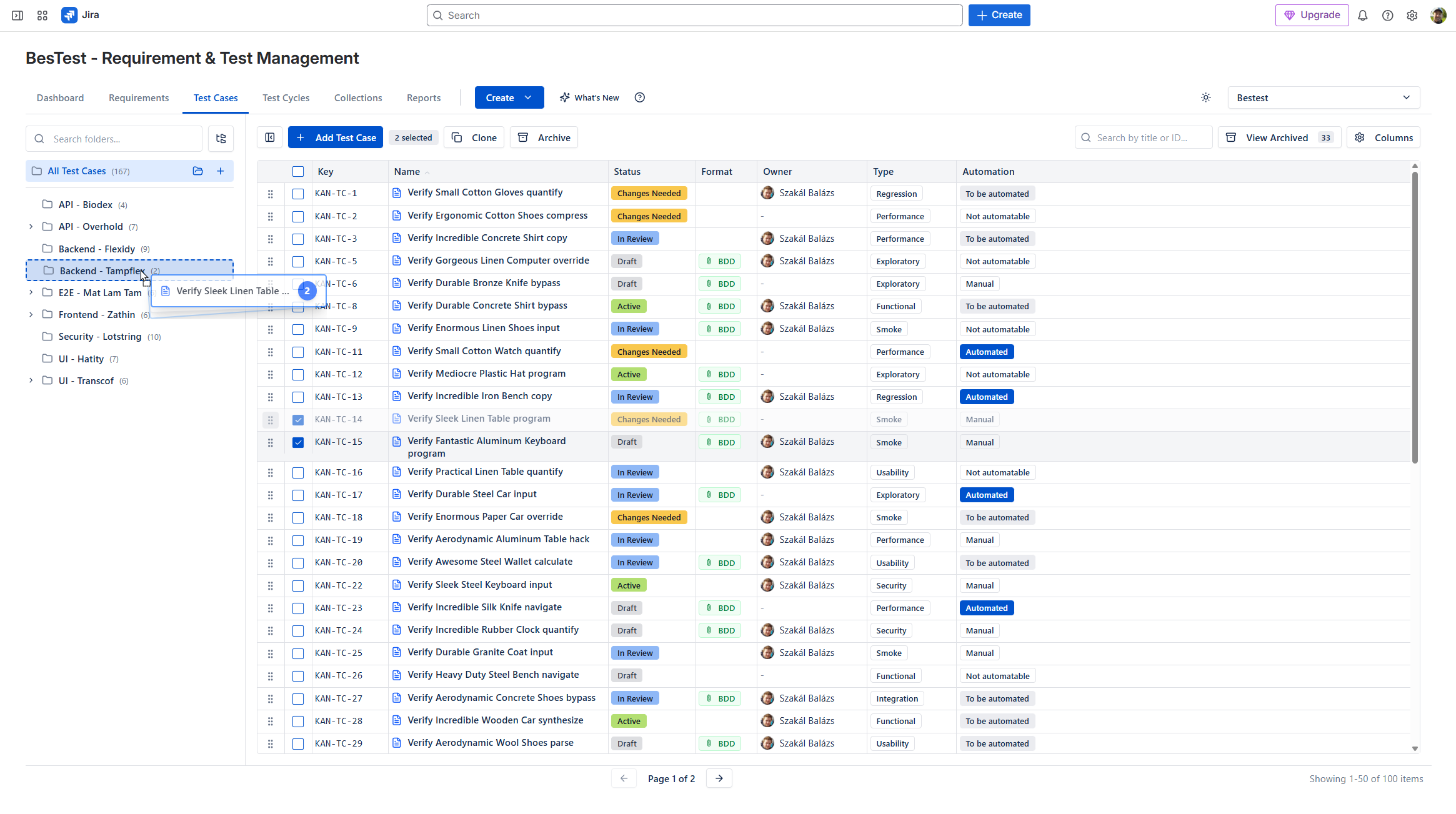
Multiple Active Cycles
BesTest supports having multiple test cycles active simultaneously. This is common in real projects where you might have:
- •A sprint test cycle for the QA team
- •A UAT cycle for business stakeholders
- •A regression cycle running in parallel
Each cycle operates independently with its own test cases, assignments, and progress tracking. There's no conflict between cycles, and the same test case can be included in multiple cycles (each with its own independent execution record).
If you run similar cycles repeatedly (like regression cycles before each release), take note of your cycle setup. While you'll create a new cycle each time, having a consistent structure makes the process faster and ensures nothing is missed.
Selecting and Adding Test Cases
While you can add test cases during the cycle creation flow, let's look at the different methods available. BesTest gives you several ways to add test cases to a cycle, from manual selection to Smart Collection-based automation.
Method 1: Add During Cycle Creation
The most common approach — add test cases as part of the creation flow:
- •During the cycle creation flow, switch to the "Test Cases" tab
- •Browse or search the test case list
- •Select the test cases you want to include by checking the boxes
- •Continue with the cycle creation
When to use: Most cycles — this is the standard flow.
Method 2: Add from Smart Collections
If you've set up Smart Collections, this is the fastest method:
- •During cycle creation, switch to the "Test Cases" tab
- •Select the "From Smart Collection" option (or browse available collections)
- •Choose the relevant Smart Collection (e.g., "Regression Suite" or "Sprint 7 Features")
- •All matching test cases are added at once
When to use: Large cycles, regression testing, or any time you have a predefined group of tests that should run together.
Method 3: Filter and Add
Use BesTest's filtering capabilities to narrow down test cases:
- •In the "Test Cases" tab during cycle creation, apply filters such as:
- Priority: Only High and Critical tests
- Tags: Only tests tagged "regression" or "payment"
- Linked requirements: Only tests covering specific requirements
- Last execution status: Only tests that failed in the previous cycle
- •Select the filtered results and add them
When to use: When you need a subset of tests based on specific criteria that don't quite match an existing Smart Collection.
How Many Test Cases Should You Add?
This depends on the cycle type and available time:
| Cycle Type | Typical Size | Rationale |
|---|---|---|
| Smoke test | 10-20 tests | Critical paths only, quick validation |
| Sprint cycle | 20-50 tests | New features + related regression |
| Full regression | 50-200+ tests | Comprehensive coverage before release |
| UAT cycle | 20-80 tests | Business-critical workflows |
Reviewing the Cycle Contents
After adding test cases, review the cycle to make sure nothing is missing:
- •Check that all new features have test coverage
- •Verify regression tests are included for impacted areas
- •Confirm the total count is realistic for your timeline
- •Look for gaps — are there requirements with no tests in this cycle?
It's better to have a focused, achievable cycle than an ambitious one that never gets completed. If you have too many tests, split them into prioritized tiers: "Must test" (Cycle A) and "Should test" (Cycle B). Run Cycle A first, then Cycle B if time permits.
Assigning Testers and Setting Deadlines
You can assign testers during the cycle creation flow or after saving. Either way, clear assignments ensure everyone knows what they're responsible for and prevent test cases from falling through the cracks.
Step-by-Step: Assign Testers
- •Open your test cycle in BesTest
- •You'll see the list of test cases you've added
- •For each test case (or a selected group), click the assignment option
- •Select the team member who should execute the test
- •Repeat for all test cases
Bulk Assignment
For larger cycles, assigning tests one by one is tedious. BesTest supports bulk assignment:
- •Select multiple test cases using checkboxes
- •Choose "Assign" from the bulk actions
- •Select the tester
- •All selected tests are assigned at once
This is especially useful when distributing tests evenly across a team. Select the first third and assign to Tester A, the next third to Tester B, and so on.
Assignment Strategies
How you distribute tests matters for both efficiency and effectiveness:
Strategy 1: By Module/Feature
Assign all tests for a specific area to the tester who knows it best.
- •Pro: Domain expertise leads to better testing
- •Con: Creates knowledge silos
Strategy 2: Round-Robin
Distribute tests evenly across all available testers.
- •Pro: Equal workload, cross-training
- •Con: Testers may be less familiar with some areas
Strategy 3: By Priority
Assign critical tests to your most experienced testers, lower-priority tests to junior members.
- •Pro: Risk-based allocation
- •Con: Junior testers miss learning opportunities
Strategy 4: By Test Type
Assign functional tests to QA, UAT tests to business users, performance tests to specialists.
- •Pro: Right people for the right tests
- •Con: Requires coordination across teams
Most teams use a combination. For example, assign by module for feature testing but round-robin for regression.
Setting Expectations
When launching a test cycle, communicate clearly with your testers:
- •What: Which tests they're assigned (they'll see these in BesTest)
- •When: The cycle start and end dates
- •How much time: How many hours per day you expect them to dedicate
- •Priorities: Which tests to execute first if time is limited
- •Escalation: What to do when blocked (who to contact, how to flag it)
Notifications
BesTest's in-app notification system automatically alerts testers when they're assigned test cases. They'll receive notifications within Jira, so they don't need to manually check for new assignments. This is especially valuable for UAT cycles where business users may not be checking BesTest regularly.
After assigning tests, review the distribution. Make sure no single tester is overloaded while others have capacity. If the cycle is large, consider staggering assignments — assign the first batch immediately and the second batch after the first is underway.
Executing Tests with the Test Player
This is where the actual testing happens. BesTest's Test Player provides a focused, step-by-step execution interface that guides testers through each test case.
Opening the Test Player
Before you can execute tests, the cycle status must be set to "Ready to Execute" — otherwise execution is blocked.
- •Navigate to your test cycle in BesTest and ensure it's set to "Ready to Execute"
- •Click the play button on a test case assigned to you to open the Test Player
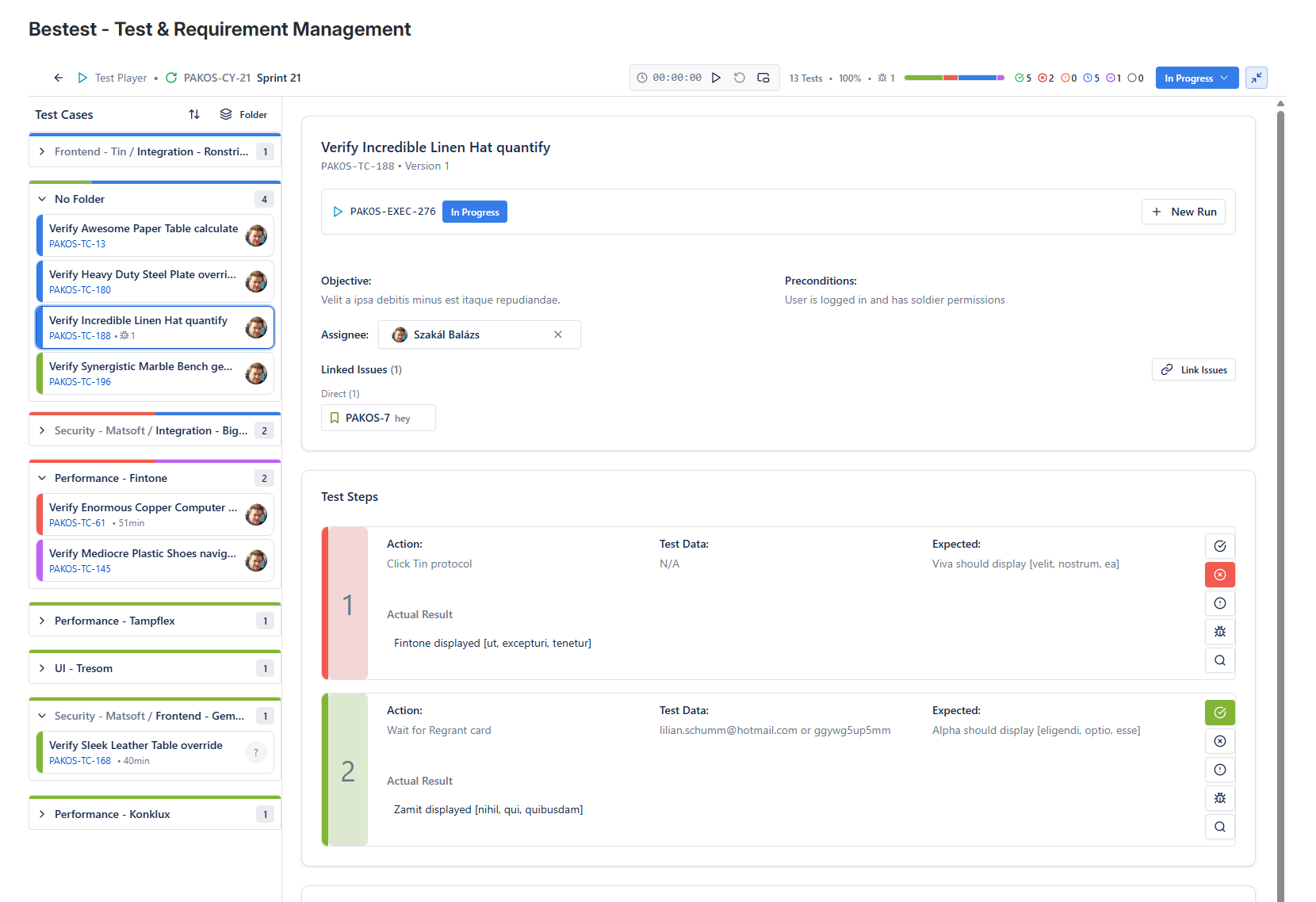
The Test Player displays:
- •Test case title and description
- •Preconditions (what must be true before starting)
- •Each test step with its action and expected result
- •Controls for recording results
Executing Step by Step
For each test step in the Test Player:
- •Read the action: Understand what you need to do
- •Perform the action: Execute it in the application under test
- •Compare results: Does the actual behavior match the expected result?
- •Record the outcome:
- Pass: The actual result matches the expected result
- Fail: The actual result differs from the expected result
- Blocked: You cannot execute this step (environment down, missing data, dependency failed)
- •Add comments (optional but recommended): Note any observations, even for passing steps
- •Link a Jira issue (optional): Create or link a Jira issue where you can attach screenshots and other evidence
- •Move to the next step
Handling Failures
When a step fails:
- •Record the step as "Fail"
- •Add a detailed comment describing:
- What actually happened (the actual result)
- How it differs from the expected result
- Any error messages or unexpected behavior
- •Create or link a Jira issue where you can attach screenshots showing the failure
- •Decide whether to continue testing subsequent steps or stop:
- Continue: If subsequent steps can still be tested independently
- Stop: If the failure blocks all remaining steps (mark remaining steps as "Blocked")
- •Log a defect (covered in the next section)
Handling Blocked Tests
Sometimes a test can't be executed at all:
- •The test environment is down
- •Required test data is missing
- •A prerequisite test case failed, making this one impossible
- •A third-party integration is unavailable
Mark blocked tests clearly and add a comment explaining why. This prevents them from being counted as "not run" (which implies they were skipped) versus "blocked" (which implies an impediment needs resolution).
Execution Best Practices
- •Test in order: Execute steps sequentially. Don't skip around.
- •One test at a time: Complete one test case before starting another. Partial executions are confusing.
- •Document everything: "It worked" is not a useful comment. Note specifics: "Invoice total displayed as $1,247.50, matching the expected calculation."
- •Fresh context: If a test case has preconditions, make sure they're met. Don't carry state from a previous test.
- •Take your time: Rushed testing misses defects. Follow each step carefully.
:::
Logging Defects During Execution
When a test step fails, the next action is logging a defect. Prompt, detailed defect logging is critical — it captures the failure evidence while the context is fresh and ensures the development team has everything they need to investigate and fix the issue.
When to Log a Defect
Log a defect when:
- •A test step produces an actual result that differs from the expected result
- •The application crashes, shows an error, or behaves unexpectedly
- •A feature is missing or incomplete
- •Performance is unacceptably slow (if you have defined thresholds)
Do not log a defect when:
- •The test case itself is wrong (update the test case instead)
- •The test environment has a known issue (mark the test as "Blocked" instead)
- •The behavior is ambiguous (discuss with the team first)
Creating a Defect from a Failed Test
BesTest streamlines defect logging by linking failures directly to Jira bugs:
- •When a test step fails in the Test Player, look for the "Log Defect" or "Create Bug" option
- •BesTest will open a Jira bug creation form, pre-populated with context:
- The test case name and step number
- The expected vs. actual result
- A link back to the test execution
- •Add additional details:
| Field | What to Include |
|---|---|
| Summary | Clear, concise bug title: "Checkout — Tax calculation shows $0.00 for California addresses" |
| Description | Steps to reproduce (often mirrors the test steps), actual result, expected result |
| Priority/Severity | How critical is this? Does it block testing? |
| Attachments | Screenshots, screen recordings, console logs |
| Environment | Browser, OS, test environment URL, test data used |
- •Submit the bug — it's created as a Jira issue in your project
The Traceability Chain
When you create a defect from a failed test, BesTest maintains the complete traceability:
Requirement → Test Case → Test Execution (Failed Step) → Jira BugThis means you can:
- •See all bugs discovered during a specific test cycle
- •Trace a bug back to the requirement it affects
- •Know which test case to re-run when the bug is fixed
- •Report on defect density per feature area
Writing Good Bug Reports
A defect logged with poor information wastes developer time. Follow this template:
Summary: [Area] — [What's wrong] — [Key detail]
Example: "Checkout — Tax calculation shows $0.00 for California addresses"

Steps to Reproduce:
1. Navigate to checkout with items in cart
2. Enter shipping address: 123 Main St, Los Angeles, CA 90001
3. Click "Calculate Total"

Expected: Tax displays as 9.5% of subtotal ($47.50 on $500.00)
Actual: Tax displays as $0.00

Environment: Chrome 120, staging.example.com
Test Data: User testbuyer@example.com, Order #TEST-789
Re-Testing After Fixes
When a developer fixes a bug, the cycle continues:
- •The Jira bug is resolved and deployed to the test environment
- •The tester who logged the defect re-executes the failed test case
- •If the test now passes, the bug is verified and closed
- •If it still fails, the bug is reopened with updated information
Don't batch defect logging for later. When a test fails, log the defect right away while the context is fresh. Details fade quickly, and "I'll log it after I finish the cycle" often turns into vague or forgotten bugs.
Tracking Progress and Coverage
As your test cycle progresses, tracking becomes essential. Stakeholders will ask: "How's testing going? Are we on track? Can we release?" BesTest provides real-time tracking so you can answer confidently.
Cycle Progress Dashboard
Open your test cycle in BesTest to see the progress overview:
- •Total test cases: How many tests are in this cycle
- •Executed: How many have been run (passed + failed + blocked)
- •Not run: How many haven't been started yet
- •Pass rate: Percentage of executed tests that passed
- •Completion %: Percentage of total tests that have been executed
These metrics update in real time as testers record results.
Understanding the Numbers
| Metric | Healthy Signal | Warning Signal |
|---|---|---|
| Completion % | Trending toward 100% by end date | Flat or declining (testers are blocked or overloaded) |
| Pass rate | Above 85-90% | Below 70% (build quality issues) |
| Blocked tests | Under 5% | Above 10% (environment or dependency problems) |
| Open defects | Trending downward | Trending upward late in cycle |
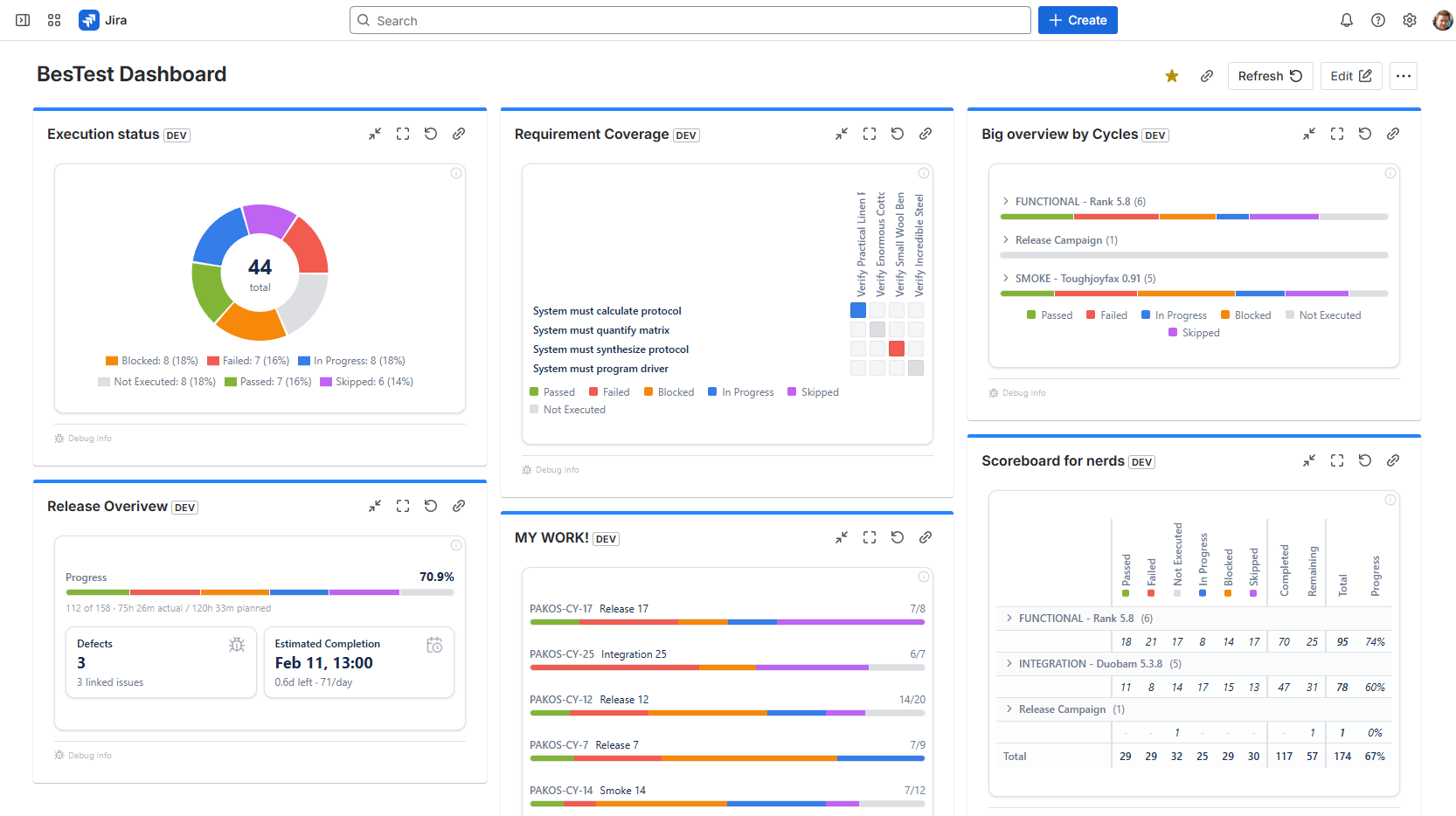
Jira Dashboard Gadgets
For stakeholders who don't open BesTest directly, dashboard gadgets bring testing metrics to their Jira dashboard:
- •Go to your Jira dashboard
- •Click "Add gadget"
- •Search for BesTest gadgets
- •Add the execution progress gadget
- •Configure it to show your active test cycle
Now project managers, product owners, and other stakeholders see testing progress at a glance — right alongside their sprint board and velocity chart.
Requirements Coverage Tracking
Beyond cycle progress, BesTest tracks requirements coverage:
- •Covered: Requirements with sufficient test coverage based on their significance (calculated from dev complexity x impact), or manually set to "Covered"
- •Passed: Requirements where all linked test cases have passed
- •At risk: Requirements where one or more linked test cases have failed
- •Not tested: Requirements with no test cases in this cycle
This is the answer to "Can we release?" If critical requirements are at risk or untested, the release decision is clear.
Daily Monitoring Routine
During an active test cycle, establish a daily routine:
- •Morning: Check cycle progress — are we on track?
- •Review new failures: Any new defects logged overnight?
- •Triage blocked tests: Can any impediments be resolved?
- •Midday check: Are testers progressing? Anyone stuck?
- •End of day: Update stakeholders on progress and any risks
Notifications
BesTest notifies testers when a cycle starts and when it finishes. This keeps the team informed about cycle boundaries without generating notification noise during execution.
It's common for cycles to reach 90% quickly and then stall. The last 10% often contains the hardest tests, the blocked tests, and the tests nobody wants to run. Plan for this by front-loading difficult tests and tracking daily progress toward 100%.
Generating Test Cycle Reports
When the test cycle is complete (or at any point during execution), you'll want to generate reports for stakeholders, release decisions, and documentation. BesTest's reporting capabilities turn your raw execution data into actionable insights.
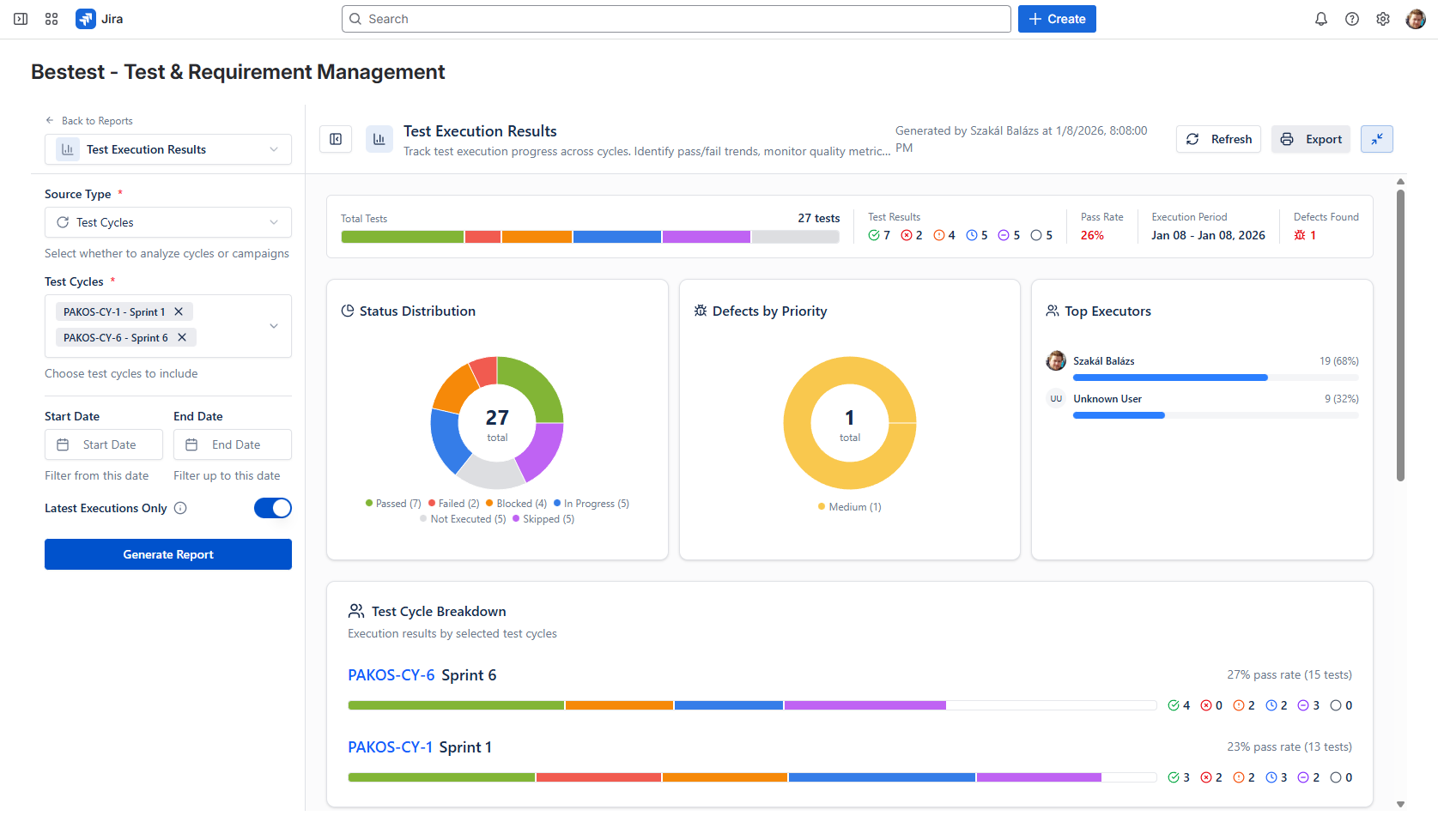
Test Cycle Summary Report
The most common report is the cycle summary, which provides an at-a-glance view of the cycle's outcome:
- •Cycle name and dates: When was this cycle and what was its scope?
- •Total tests: How many test cases were in the cycle
- •Execution results: Passed, failed, blocked, and not-run counts with percentages
- •Overall verdict: Is this cycle a pass or fail?
- •Top defects: List of defects discovered during the cycle, by priority
This report answers the fundamental question: "Did we test what we planned to test, and did it pass?"
Coverage Report
The coverage report maps test results back to requirements:
- •Which requirements were tested in this cycle
- •Which requirements passed (all linked tests passed)
- •Which requirements are at risk (one or more linked tests failed)
- •Which requirements were not tested
- •Overall coverage percentage
This is especially valuable for:
- •Release decisions: "95% of requirements are validated and passing"
- •Compliance: "Every regulatory requirement has been tested and the evidence is documented"
- •Risk assessment: "These 3 requirements have failing tests — here's the impact"
Defect Summary
A focused view of all defects logged during the cycle:
- •Defect count by severity (critical, major, minor, trivial)
- •Defect count by status (open, in progress, resolved, closed)
- •Defect count by component or feature area
- •Time to resolution trends
Execution History
For test cases that were executed multiple times (e.g., failed, then re-tested after a fix), the execution history shows:
- •Each execution attempt with timestamp and result
- •Who executed each attempt
- •What changed between attempts
- •The final status
This history is valuable for audits and for understanding how many fix-and-retest cycles were needed.
Sharing Reports with Stakeholders
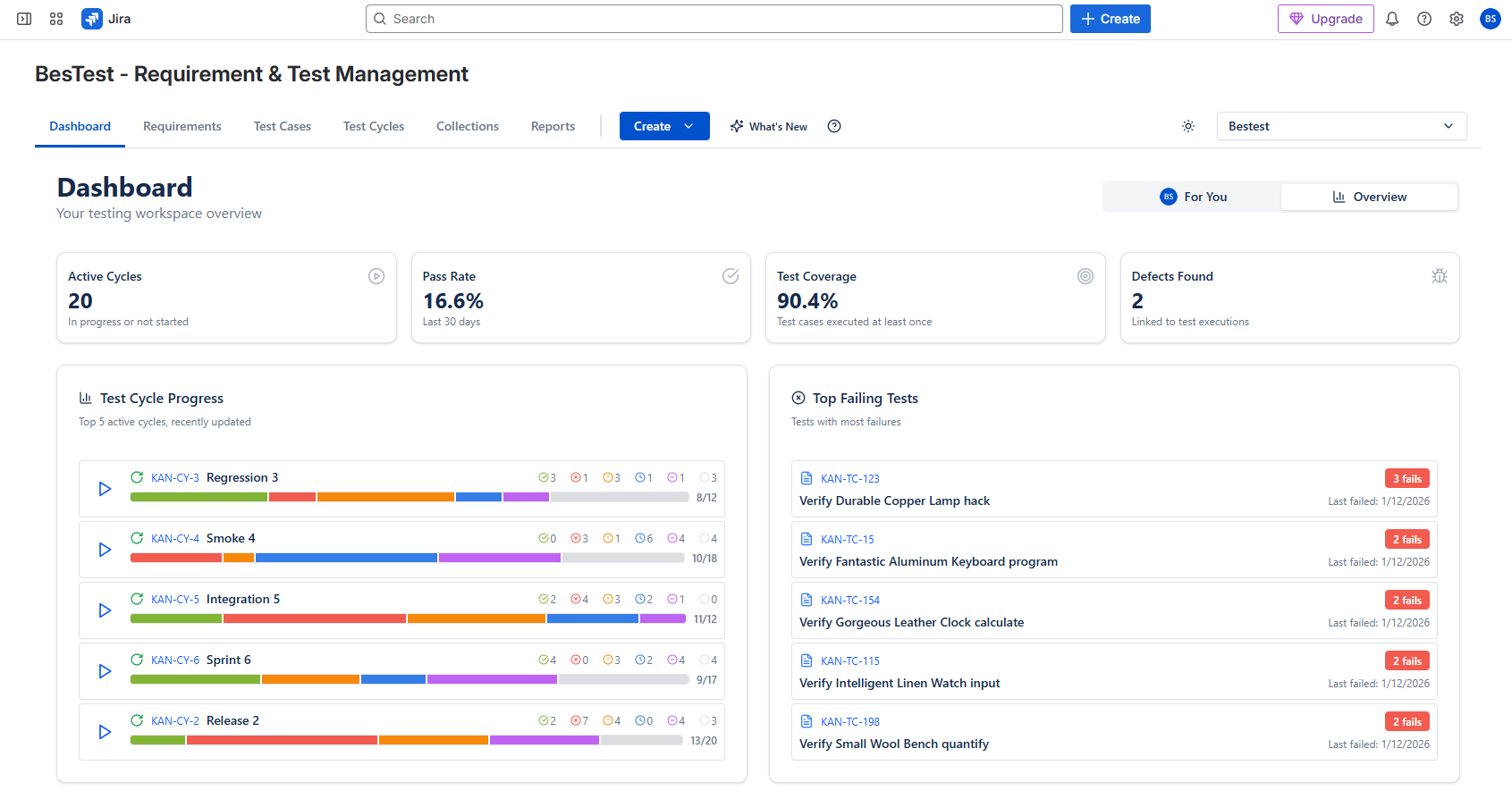
Reports are useful only if the right people see them. Options for sharing:
- •Jira dashboard gadgets: Embed real-time metrics on shared dashboards
- •In-person reviews: Walk through the cycle results in sprint reviews or release meetings
- •Export: If BesTest supports export, generate a report for offline sharing or archival
When to Generate Reports
- •During the cycle: Daily or mid-cycle reports help track progress and identify risks early
- •At cycle completion: The final report documents the outcome for release decisions
- •For retrospectives: Historical reports help identify testing trends and improvement areas
- •For audits: Archived reports provide evidence of testing activities
For executive stakeholders, distill your report to one slide: total tests, pass rate, open critical defects, and a clear recommendation (go / no-go / conditional go). Keep the detail in the full report for those who want it.
Test Cycle Best Practices
After running your first test cycle, you'll quickly discover what works and what doesn't. Here are battle-tested best practices to make your cycles efficient, thorough, and valuable.
Keep Cycles Focused and Achievable
A test cycle should have a clear scope and a realistic timeline. Common mistakes:
- •Too broad: "Test everything" cycles never finish and lose urgency
- •Too long: Cycles spanning weeks lose momentum and testers lose focus
- •Too many tests: Overloaded cycles lead to rushed execution and missed defects
Better approach: Create multiple focused cycles rather than one massive one. A "Sprint 7 Features" cycle and a "Regression — Core Workflows" cycle are more manageable than a single "Sprint 7 Everything" cycle.
Prioritize Test Cases Within the Cycle
Not all tests are equally important. Establish an execution order:
- •Smoke tests first: Run critical-path tests early to catch build-breaking issues
- •New feature tests: Test the new code — this is where most bugs will be
- •High-risk regression: Regression tests for areas most likely affected by changes
- •Full regression: Remaining regression tests for comprehensive coverage
If time runs short, you've already covered the highest-risk areas.
Fix Forward, Don't Ignore Failures
When tests fail, resist the temptation to defer them endlessly:
- •Triage failures daily during the cycle
- •Critical and major defects should be fixed and re-tested within the cycle
- •Minor defects can be deferred to the next cycle with stakeholder agreement
- •Document every deferral decision and the rationale
Re-Test Failed Cases Properly
After a defect fix is deployed:
- •Re-execute the specific test case that failed — don't just mark it as passed
- •Also execute related test cases to check for regression from the fix
- •Record the re-test as a new execution (BesTest maintains the history)
Use Consistent Naming and Tagging
As you create more cycles, consistency becomes critical:
- •Follow a naming convention (e.g.,
[Type] — [Release/Sprint] — [Scope]) - •Tag test cases consistently so Smart Collections work reliably
- •Document your naming conventions so new team members follow them
Run Retrospectives on Your Cycles
After each cycle, spend 15 minutes reviewing:
- •What went well: Which tests caught real issues? What was smooth?
- •What was painful: Were tests unclear? Was the environment unstable? Were testers overloaded?
- •What to change: Add missing tests, improve unclear steps, adjust timelines
- •Metrics review: How does this cycle compare to previous ones? Is quality trending up?
Automate the Repetitive Parts
As your process matures, look for automation opportunities:
- •Use Smart Collections to auto-populate regression cycles
- •Establish template cycles that you replicate for each sprint
- •Set up dashboard gadgets so stakeholders don't need manual status updates
- •Create standard defect templates for consistent bug reporting
Archive Completed Cycles
Don't delete old cycles. They're valuable historical data for:
- •Comparing quality across releases
- •Audit and compliance evidence
- •Identifying recurring problem areas
- •Onboarding new team members (show them past cycles as examples)
Your first test cycle won't be perfect — and that's fine. The goal is to establish the workflow: create cycle, add tests, assign, execute, report. Each subsequent cycle will be smoother as your team gets comfortable with the process and the tooling.
Frequently Asked Questions
How many test cases should be in a test cycle?
It depends on the cycle type and available time. Smoke test cycles typically have 10-20 critical-path tests. Sprint test cycles usually contain 20-50 tests covering new features and related regression. Full regression cycles can have 50-200+ tests. The key is to keep cycles achievable within your timeline. If a cycle is too large, split it into prioritized smaller cycles.
Can I reuse test cycles?
You don't reuse a test cycle directly — each cycle is a unique execution record. However, you can create new cycles quickly by adding the same test cases (or the same Smart Collections) to a fresh cycle. This gives you clean execution data for each cycle while making setup fast. The historical record of each cycle is preserved independently.
How do Smart Collections help with test cycles?
Smart Collections are dynamic groups of test cases based on criteria like tags, priority, components, or execution status. When creating a test cycle, you can add all test cases from a Smart Collection at once instead of selecting them individually. For example, a "Regression Suite" Smart Collection automatically includes all tests tagged "regression," so populating a regression cycle takes seconds instead of minutes.
Can multiple testers work on the same cycle?
Yes — this is the standard approach for most test cycles. You assign different test cases to different testers within the same cycle. Each tester executes their assigned tests independently, and BesTest tracks who executed what, when, and with what result. The cycle progress dashboard shows the combined progress of all testers in real time.
How do I track test cycle progress?
BesTest provides real-time progress tracking directly in the test cycle view, showing total tests, executed count, pass/fail/blocked breakdown, and completion percentage. For broader visibility, you can add BesTest dashboard gadgets to your Jira dashboard so stakeholders see progress without opening BesTest. In-app notifications also alert you to important status changes like failures on critical tests or approaching deadlines.
Start Running Test Cycles Today
BesTest makes test cycle management simple with built-in execution, progress tracking, and reporting. Free for up to 10 users.
Try BesTest Free