


Why Choose BesTest for Jira Test Management
If you're managing software testing in Jira, you've probably felt the pain. Jira is an excellent project management tool, but it has no built-in concept of test cases, test executions, or requirements traceability. Teams end up cobbling together workarounds — spreadsheets, Confluence pages, custom issue types — that quickly become unmanageable.
BesTest solves this by bringing full test management directly into Jira. There's no context switching, no syncing between tools, and no learning curve for a completely separate platform. Your test data lives right alongside your stories, epics, and bugs.
Here's what makes BesTest different from other options:
- •Built on Atlassian Forge: BesTest is built on Forge, Atlassian's secure app framework designed with enterprise security in mind. This matters for security-conscious teams and regulated industries.
- •No Jira issue bloat: BesTest stores test cases and requirements as dedicated entities, not as Jira issues. Your backlog stays clean, your JQL stays fast, and your Jira instance doesn't grind to a halt under thousands of test case issues.
- •Requirements and test cases in one place: Link requirements to test cases, track coverage, and see traceability at a glance. No more guessing whether a feature has been tested.
- •Smart Collections: Automatically group test cases based on criteria like labels, components, or linked requirements. Build dynamic test suites that stay up to date as your project evolves.
- •Dashboard gadgets: Track testing progress directly from your Jira dashboard with built-in gadgets. Stakeholders get real-time visibility without learning a new tool.
- •Free for small teams: BesTest is free for up to 10 users, so you can evaluate it fully before committing.
Whether you're a QA lead setting up test management for the first time or a team migrating from spreadsheets, this guide will walk you through every step from installation to your first test execution.
What You Need Before Starting
Before installing BesTest, make sure you have the following in place. The setup process is straightforward, but having these prerequisites ready will let you move through it without interruptions.
Jira Cloud Instance
BesTest is available for Jira Cloud. You'll need an active Jira Cloud instance where you have administrative permissions (or access to someone who does). If you're evaluating BesTest, a free Jira Cloud instance from Atlassian works perfectly.
Admin Permissions
To install apps from the Atlassian Marketplace, you need Jira administrator or site administrator permissions. If you're not an admin, ask your Jira administrator to install BesTest for you — you can send them the direct Marketplace link.
A Project to Work With
You'll need at least one Jira project where you want to manage testing. BesTest works with any Jira project type — Scrum, Kanban, or team-managed projects. For this tutorial, we'll use a single project, but BesTest's dashboard gadgets support cross-project reporting as well.
A Basic Understanding of Test Management Concepts
You don't need to be a QA expert, but it helps to understand the basics:
| Concept | What It Means |
|---|---|
| Requirement | A feature or behavior the software must have |
| Test case | A set of steps that verify a requirement works |
| Test execution / cycle | A planned run of one or more test cases |
| Traceability | The link between requirements and the tests that validate them |
If these are new to you, don't worry — this guide explains each concept as we go, and BesTest's interface makes the relationships intuitive.
Time Investment
Plan for about 15 minutes to complete this entire tutorial. Installation takes 2-3 minutes, configuration takes about 1 minute (literally one click to enable on a project), and creating your first requirement, test case, and execution takes the remaining time. If you already have requirements and test scenarios in mind for your project, you can start with real data right away.
Installing BesTest from Atlassian Marketplace
Installing BesTest is a standard Atlassian Marketplace process. Here's how to do it step by step.
Option 1: Install from the Marketplace Website
- •Go to the BesTest listing on the Atlassian Marketplace
- •Click "Get it now" (or "Try it free" if shown)
- •Select your Jira Cloud site from the dropdown
- •Review the app permissions and click "Get it now" to confirm
- •Wait for the installation to complete — this typically takes 30-60 seconds
Option 2: Install from within Jira
- •In your Jira instance, click the gear icon (Settings) in the top navigation
- •Select "Apps" from the dropdown
- •Click "Find new apps" in the left sidebar
- •Search for "BesTest" in the search bar
- •Click on BesTest — Requirement & Test Management in the results
- •Click "Get app" and follow the prompts to install
After Installation
Once installed, you'll find BesTest in the global Apps menu at the top of Jira, as well as in the project menu bar at the top of each project. Click it to open the BesTest interface.
The first time you open BesTest in a project, it will initialize the project workspace. This takes a few seconds and only happens once per project.
Verifying the Installation
To confirm BesTest is installed correctly:
- •Navigate to any Jira project
- •Look for "BesTest" in the project menu bar at the top of your project
- •Click it — you should see the BesTest dashboard with options to create requirements and test cases
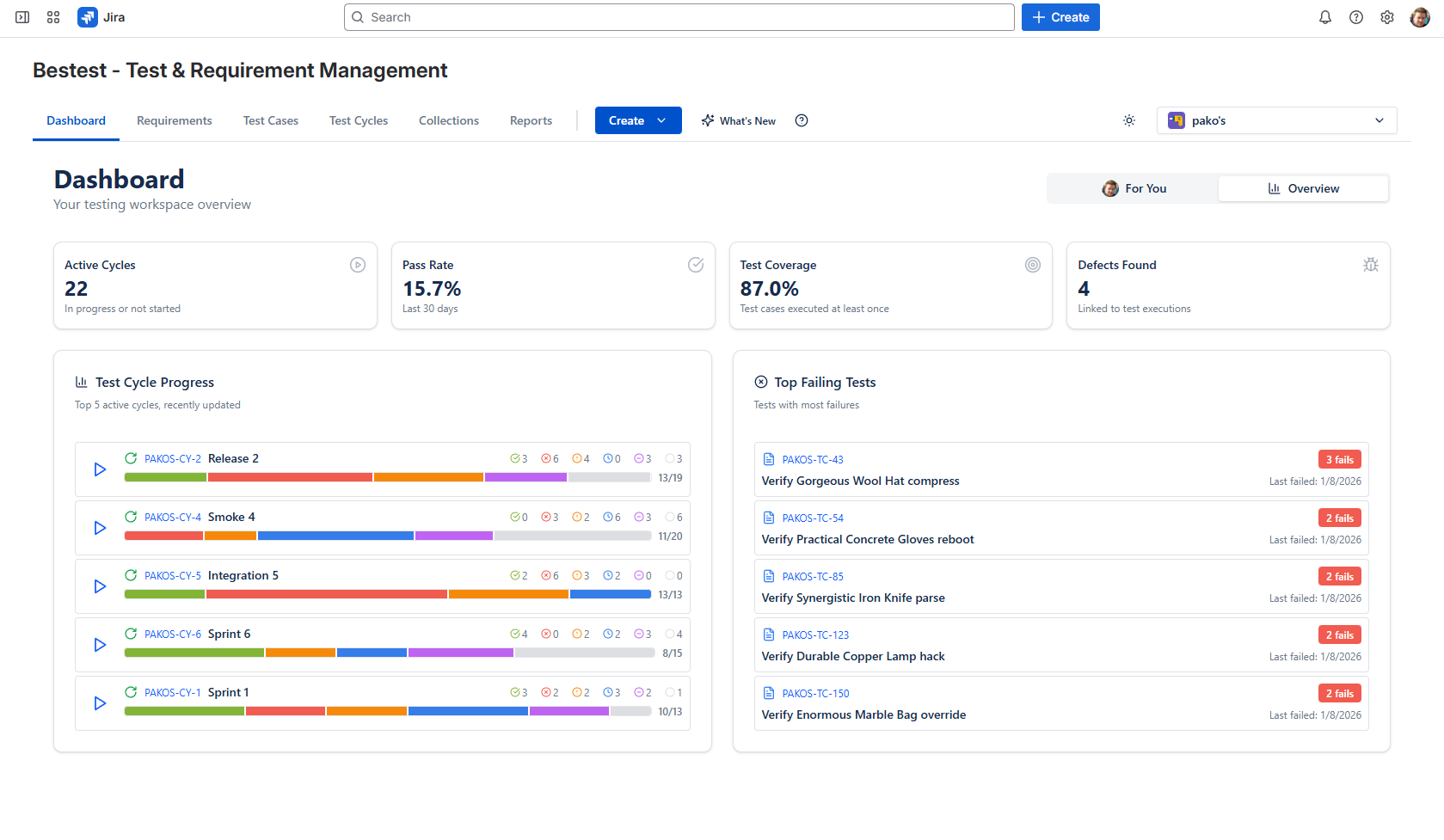
If you don't see BesTest in the project menu bar, check that the app is installed (Settings > Apps > Manage apps) and that your project type is supported. If you're using a team-managed project, you may need to enable the app in the project settings under "Features" or "Apps."
Permissions
BesTest inherits Jira project permissions. If a user has access to the Jira project, they can access BesTest within that project. There's no separate user management to configure — it just works with your existing Jira permission scheme.
Initial Configuration and Project Setup
With BesTest installed, let's configure it for your project. The good news is that BesTest requires minimal configuration — it's designed to work out of the box with sensible defaults.
Open BesTest in Your Project
- •Navigate to the Jira project where you want to manage testing
- •Click "BesTest" in the project menu bar at the top
- •You'll land on the BesTest project dashboard
Explore the Navigation
BesTest organizes your test management data into clear sections:
- •Requirements: Where you define what the software must do
- •Test Cases: Where you write the steps to verify each requirement
- •Test Cycles: Where you plan and execute groups of test cases
- •Reports: Where you track coverage, progress, and results
Take a moment to click through each section to familiarize yourself with the layout. Each section has a list view with search and filter capabilities.
Understand the Workflow
BesTest follows a natural test management workflow:
Requirements → Test Cases → Test Cycles → Execution → Results- •Define requirements — What needs to be tested?
- •Write test cases — How will you test each requirement?
- •Create test cycles — Group test cases into executable batches
- •Execute tests — Run the tests and record results
- •Review results — Analyze pass/fail data, track coverage, log defects
You don't have to follow this flow rigidly. You can start by writing test cases and link requirements later, or create test cycles without formal requirements. BesTest is flexible enough to adapt to your process.
Configure Notification Preferences (Optional)
BesTest includes in-app notifications to keep your team informed about test assignments, status changes, and cycle deadlines. Notifications are enabled by default. You can customize notification preferences from the BesTest settings if your team has specific preferences.
Don't overthink the initial setup. BesTest works great right out of the box. You can always refine your configuration later as your testing process matures. The most important thing right now is to create your first requirement and test case — which we'll do in the next sections.
Creating Your First Requirement
Requirements in BesTest represent the features, behaviors, or specifications that your software must satisfy. They're the "what" that your test cases will verify.
Why Start with Requirements?
Creating requirements first gives you traceability from the start. When you later write test cases and link them to requirements, you can instantly see:
- •Which requirements have test coverage
- •Which requirements have no tests (coverage gaps)
- •Which tests are linked to which business needs
This traceability is invaluable for release confidence, audit compliance, and impact analysis when requirements change.
Step-by-Step: Create a Requirement
- •Navigate to your project and click "BesTest" in the project menu bar
- •Go to the "Requirements" section
- •Click the "Create Requirement" button
- •Fill in the requirement details:
| Field | Example Value |
|---|---|
| Name | User can log in with email and password |
| Description | The system shall allow registered users to log in using their email address and password. Login should validate credentials and redirect to the dashboard on success. |
| Type | Functional |
- •Click "Save" to create the requirement
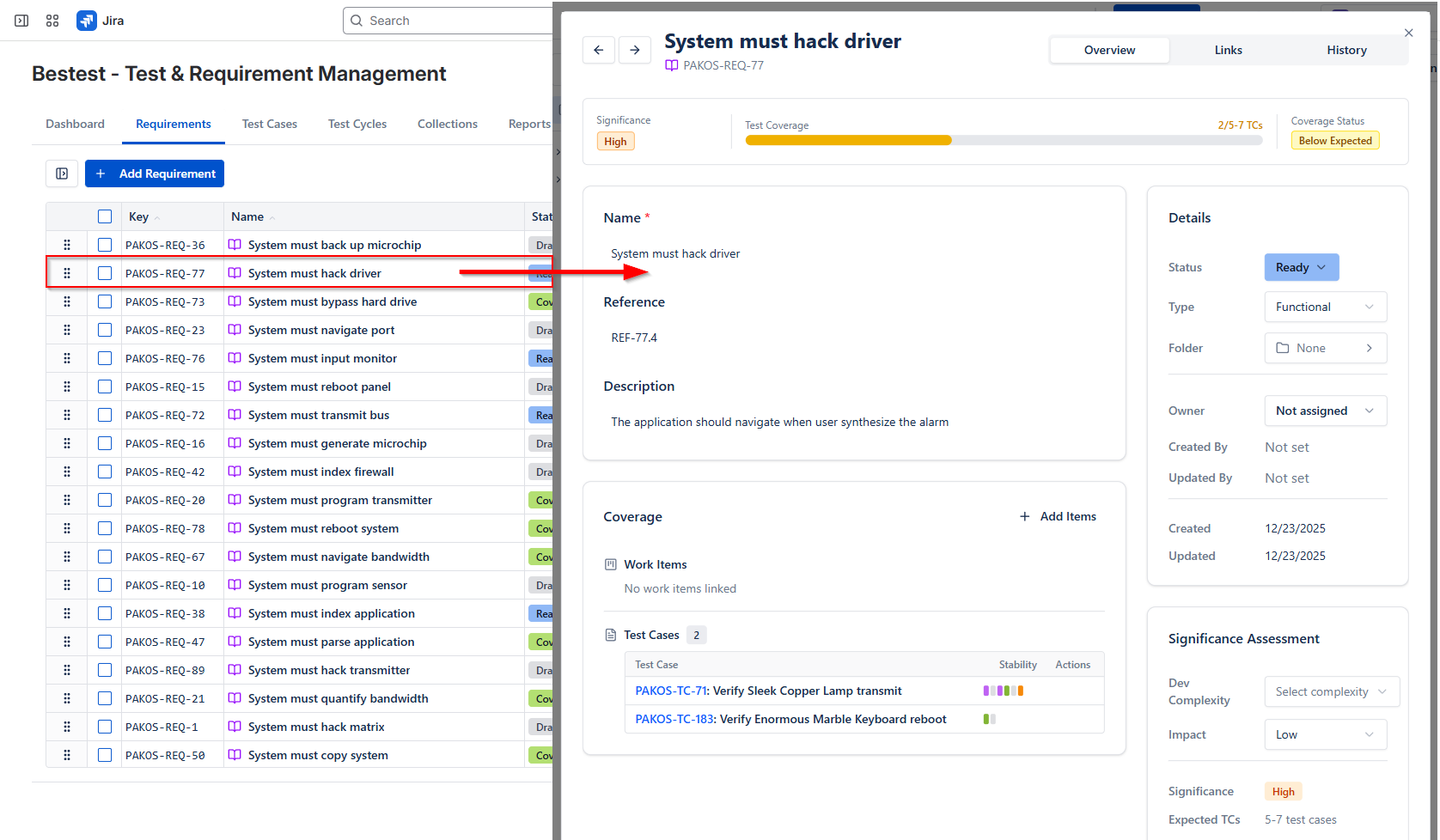
Writing Good Requirements
A well-written requirement is:
- •Specific: "User can log in with email and password" is better than "User can log in"
- •Testable: You should be able to write a test case that proves the requirement is met
- •Independent: Each requirement should stand on its own
- •Traceable: It should map to a business need or user story
Linking Requirements to Jira Issues
One of BesTest's key strengths is linking requirements to Jira issues. After creating a requirement, you can link it to the corresponding Jira story, epic, or task. This creates bidirectional traceability:
- •From the Jira issue, you can see which BesTest requirements it relates to
- •From the BesTest requirement, you can navigate to the source Jira issue
To link a requirement to a Jira issue:
- •Open the requirement you just created
- •Go to the "Links" tab, where you can view and add links
- •Search for and select the Jira issue to link
- •Save the link
If you have many requirements, you don't have to create them one by one. BesTest supports importing requirements, and you can also create them directly from your Jira stories. Start with a few to get comfortable, then scale up.
Writing Your First Test Case
Now that you have a requirement, let's write a test case to verify it. Test cases in BesTest are structured with clear steps and expected results — the same format used by professional QA teams worldwide.
Step-by-Step: Create a Test Case
- •Navigate to the "Test Cases" section in BesTest
- •Click "Create Test Case"
- •Fill in the test case details:
| Field | Example Value |
|---|---|
| Name | Verify successful login with valid credentials |
| Description | Validate that a registered user can log in with correct email and password and is redirected to the dashboard. |
| Preconditions | A registered user account exists with known credentials. The user is not currently logged in. |
- •Now add the test steps:
Navigate to the login page
Expected result: Login form displays with email and password fields
Enter a valid registered email address in the email field
Expected result: Email field accepts the input without validation errors
Enter the correct password in the password field
Expected result: Password field masks the input with dots or asterisks
Click the "Log In" button
Expected result: System validates credentials, redirects to the dashboard, and displays the user's name in the header
- •Click "Save" to create the test case
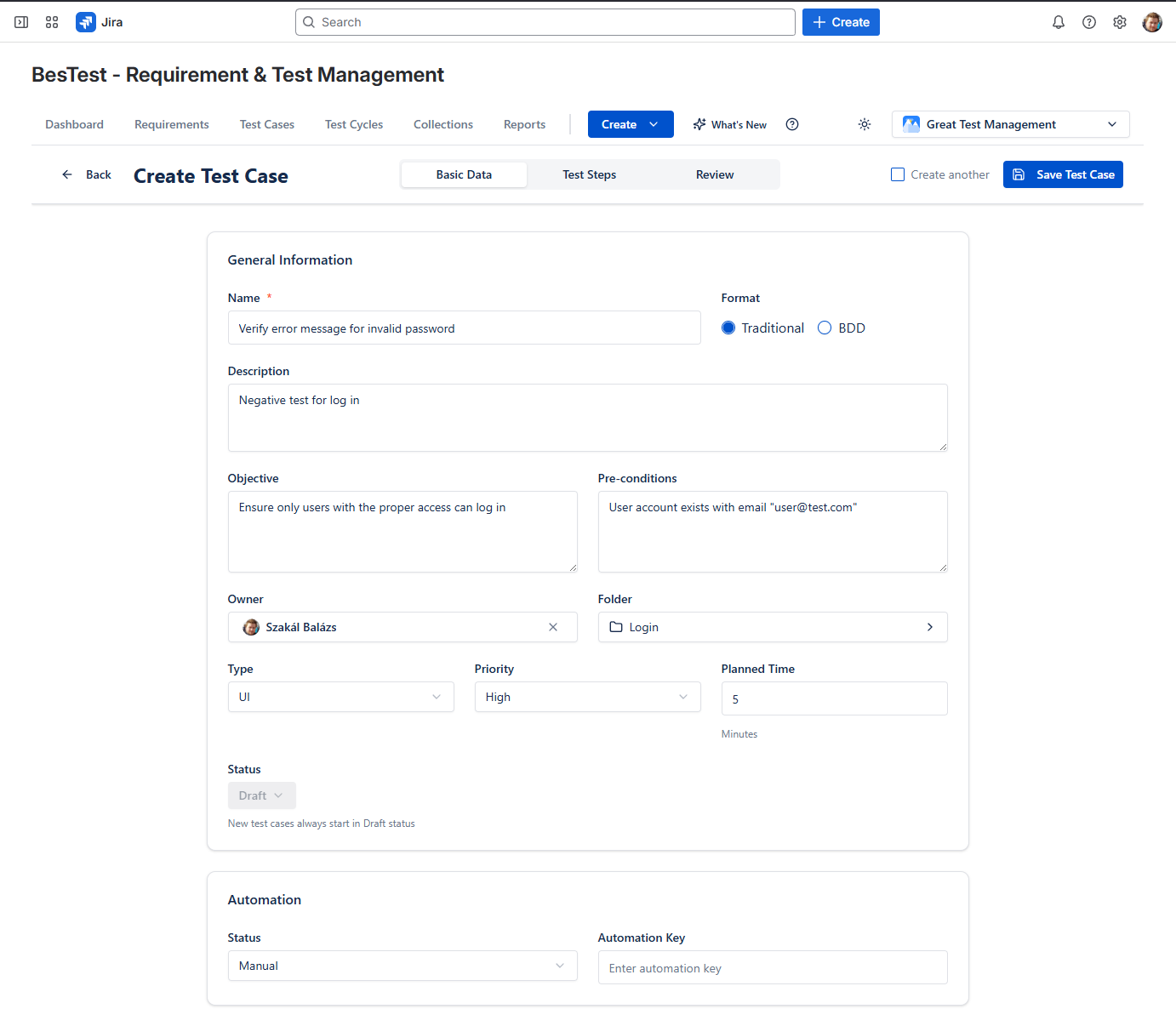
Best Practices for Test Steps
- •One action per step: Don't combine multiple actions into a single step. This makes it easier to identify exactly where a test fails.
- •Be specific about inputs: "Enter a valid email" is less useful than "Enter testuser@example.com in the Email field."
- •Be specific about expected results: "Page loads correctly" is vague. "Dashboard displays with welcome message 'Hello, Test User' and navigation menu visible" is clear.
- •Include preconditions: State everything that must be true before the test begins. Don't assume the tester knows the setup.
Your first test case doesn't need to be perfect. Write it, run it, and refine it based on the experience. The most important thing is getting your first end-to-end cycle (requirement → test case → execution) working. You can always improve the detail level later.
Linking Requirements to Test Cases
With both a requirement and a test case created, it's time to connect them. Linking requirements to test cases is the foundation of traceability — and it's one of BesTest's most valuable features.
Why Linking Matters
Without links between requirements and test cases, you're guessing about coverage. Common questions that go unanswered:
- •"Has this requirement been tested?" — No way to know
- •"What tests cover this feature?" — You'd have to search manually
- •"If this requirement changes, which tests need updating?" — Good luck
Linking solves all of these. Once a requirement is linked to its test cases, BesTest automatically calculates coverage and surfaces gaps.
Step-by-Step: Link a Requirement to a Test Case
There are two ways to create links:
Method 1: From the Requirement
- •Open the requirement you created earlier
- •Go to the "Coverage" section
- •Click "Link Test Case"
- •Search for your test case by title or ID
- •Select it and confirm the link
Method 2: From the Test Case
- •Open the test case you created
- •Go to the "Links" tab
- •Click "Link Requirement"
- •Search for your requirement by title or ID
- •Select it and confirm the link
Both methods create the same bidirectional link. Use whichever direction feels more natural for your workflow.
Understanding Coverage
After linking, navigate back to the Requirements section. You should now see coverage indicators on your requirement:
- •Covered: The requirement has sufficient test coverage based on its significance (calculated from dev complexity x impact). You can also manually set coverage status to "Covered" — when you do, it's always considered covered in stats and reports regardless of linked test count.
- •Not Covered: The requirement does not have enough linked test cases to meet its significance threshold
This is the simplest form of requirements traceability. As your project grows, you'll be able to see:
- •Coverage percentage: What percentage of requirements have test cases?
- •Execution coverage: Of the covered requirements, how many have been executed and passed?
- •At-risk requirements: Requirements where linked tests are failing
Many-to-Many Relationships
A single requirement can be linked to multiple test cases (covering different scenarios or edge cases), and a single test case can be linked to multiple requirements (if it validates more than one behavior). BesTest supports these many-to-many relationships natively.
For example, a "Login" requirement might be covered by:
- •Successful login test
- •Invalid password test
- •Account lockout after failed attempts test
- •Login with two-factor authentication test
Each of these is a separate test case, all linked to the same requirement. This gives you comprehensive coverage visibility.
A good starting target is 100% requirement coverage — meaning every requirement meets its significance-based coverage threshold. You can check your coverage status in the BesTest requirements view at any time.
Running Your First Test Execution
You've created a requirement, written a test case, and linked them together. Now it's time for the payoff — actually executing the test and recording results.
Create a Test Cycle
Test executions in BesTest are organized into test cycles. A test cycle is a planned run of one or more test cases — think of it as a batch of tests you want to execute together.
- •Navigate to the "Test Cycles" section in BesTest
- •Click "Create Test Cycle"
- •Fill in the details:
| Field | Example Value |
|---|---|
| Name | Sprint 1 — Login Feature Tests |
| Description | Verify login functionality for the Sprint 1 release |
| Start Date | Today's date |
| End Date | One week from today |
- •Click "Save" to create the cycle
Add Test Cases to the Cycle
During the cycle creation flow, switch to the "Test Cases" tab to add test cases:
- •Search for and select the test case you created earlier
- •Confirm the selection
You can add multiple test cases to a single cycle. For this tutorial, we'll start with just the one.
Execute the Test
Before you can execute tests, the cycle status must be set to "Ready to Execute" — otherwise execution is blocked.
- •Open the test cycle and set its status to "Ready to Execute"
- •Click the play button to open the Test Player — BesTest's execution interface
- •The Test Player displays each step with its action and expected result
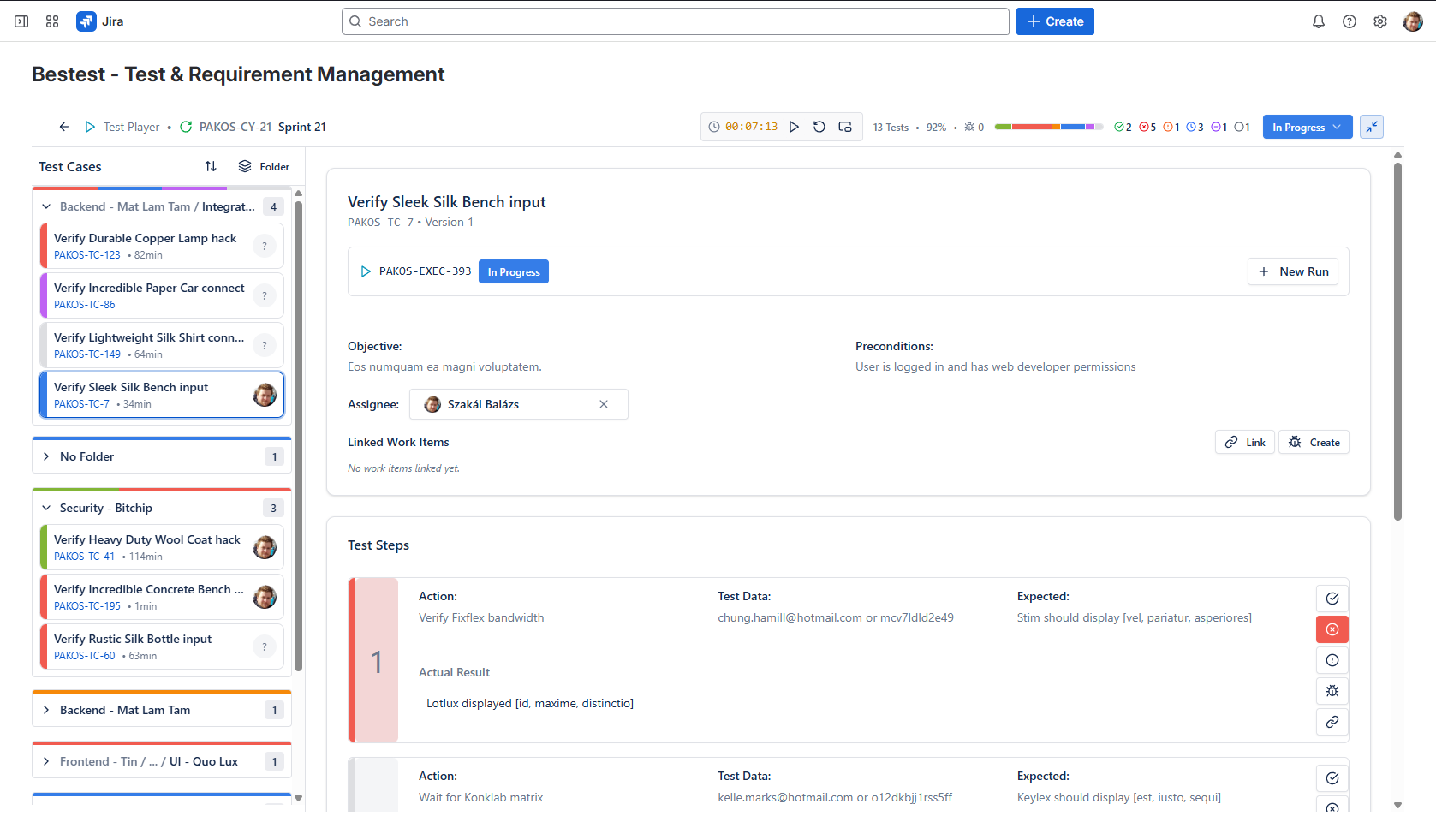
- •For each step:
- Perform the action described
- Compare the actual result with the expected result
- Click "Pass" if the actual result matches, or "Fail" if it doesn't
- Optionally add a comment explaining the result
- •After completing all steps, the test case will be marked with an overall status:
- Passed: All steps passed
- Failed: One or more steps failed
- Blocked: Testing couldn't proceed (environment issue, missing data, etc.)
Add Evidence (Recommended)
Good test execution includes evidence. During execution:
- •Add comments explaining any observations or minor deviations
- •Create or link a Jira issue where you can attach screenshots and other evidence
- •Log defects immediately if a step fails (more on this in the results section)
Since evidence is linked through Jira issues, it integrates naturally into your existing workflow and can be reviewed later for audits, retrospectives, or defect investigation.
BesTest's Test Player is designed for focused, step-by-step execution. It shows one test case at a time with clear pass/fail/blocked buttons for each step. This keeps testers focused and ensures consistent result recording.
Reviewing Test Results
After executing your test, BesTest records everything — the status of each step, any comments or attachments, the timestamp, and who executed it. Let's look at how to review and act on these results.
Viewing Execution Results
- •Navigate to the "Test Cycles" section
- •Open the cycle you just executed
- •You'll see a summary view showing:
- Total test cases in the cycle
- How many passed, failed, are blocked, or haven't been run yet
- A progress bar showing overall completion
Click on any test case to see its detailed execution history, including step-by-step results and comments.
Understanding the Results Dashboard
BesTest provides several views for analyzing test results:
- •Cycle Summary: High-level pass/fail/blocked counts for the current cycle
- •Execution History: A chronological record of every execution, useful for seeing trends over time
- •Requirements Coverage: Shows which requirements are validated by passing tests and which are at risk due to failures
What to Do When a Test Fails
When a test case fails, the standard workflow is:
- •Review the failure: Look at which step failed and the actual result vs. expected result
- •Log a defect: Create a Jira bug linked to the failed test case. BesTest can help streamline this by pre-populating defect details from the failed test step
- •Track the fix: The Jira bug goes through your normal development workflow
- •Re-execute: Once the fix is deployed, re-run the failed test case in the same cycle to verify the fix
Defect Traceability
When you log a defect from a failed test, BesTest maintains the link between:
Requirement → Test Case → Test Execution (Failed) → Jira BugThis complete traceability chain lets you answer questions like:
- •"Which requirement is affected by this bug?"
- •"Has the fix for this bug been verified by re-testing?"
- •"What's our overall quality status for this release?"
Generating Reports
BesTest's reporting capabilities let you generate summaries for stakeholders. Reports typically include:
- •Execution completion percentage
- •Pass rate (passed / total executed)
- •Open defects by severity
- •Requirements coverage status
- •Test cycle timeline and progress
These reports are valuable for sprint reviews, release decisions, and audit documentation. You can view them directly in BesTest or share them with stakeholders via your Jira dashboard gadgets.
After each test cycle, review the results with your team. Ask: Were the test cases clear enough? Did we cover the right scenarios? What should we add or change? This feedback loop improves your test suite over time.
Introduction to Smart Collections
Now that you've completed your first end-to-end cycle, let's look at one of BesTest's most powerful features: Smart Collections.
What Are Smart Collections?
Smart Collections are dynamic groups of test cases that automatically update based on criteria you define. Instead of manually selecting test cases for each test cycle, you define rules and let BesTest assemble the right set of tests for you.
Think of them as saved filters — but for test cases, and they stay current as your test suite evolves.
Why Smart Collections Matter
As your test suite grows from 10 test cases to 100, to 1,000, manually selecting tests for each cycle becomes tedious and error-prone. You'll face questions like:
- •"Which tests cover the billing module?"
- •"What's our regression suite?"
- •"Which high-priority test cases haven't been run this sprint?"
Smart Collections answer these questions automatically.
Example Smart Collections
Here are some practical Smart Collections you might create as your project grows:
| Smart Collection | Criteria | Use Case |
|---|---|---|
| Regression Suite | All test cases with tag "regression" | Full regression before release |
| Billing Module Tests | Test cases linked to requirements with component "Billing" | Module-specific testing |
| High-Priority Tests | Test cases with priority "High" or "Critical" | Quick smoke test |
| Untested This Sprint | Test cases not executed in current sprint | Coverage gap identification |
| Failed Last Cycle | Test cases that failed in the previous cycle | Re-test after bug fixes |
Creating a Smart Collection
- •Navigate to the Smart Collections area in BesTest
- •Click "Create Smart Collection"
- •Define your filter criteria — for example, filter by tags, priority, linked components, or execution status
- •Name the collection something descriptive (e.g., "Sprint Regression — Login Module")
- •Save the collection
The collection will automatically include any test cases matching your criteria. As you add new test cases that match, they'll appear in the collection automatically.
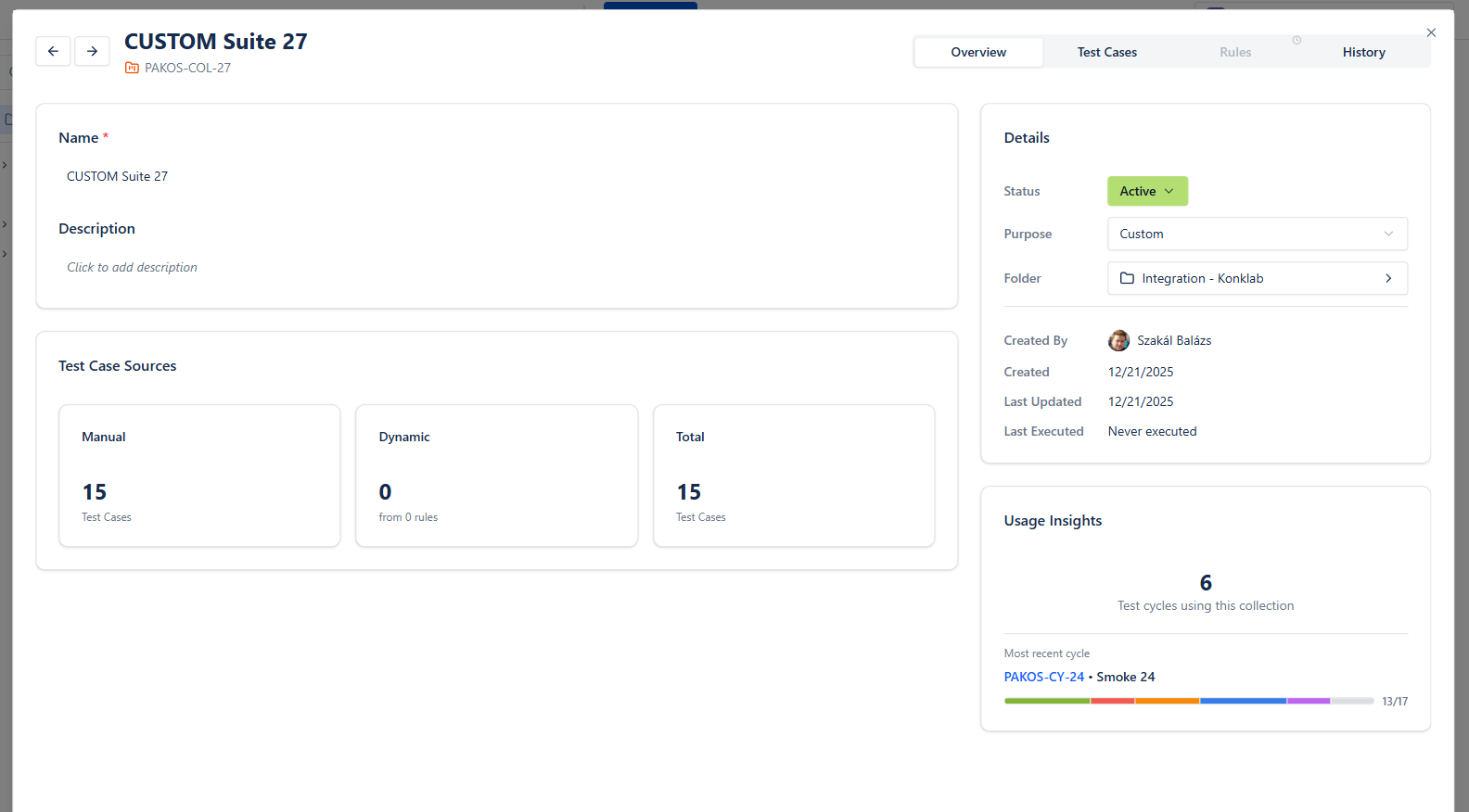
Using Smart Collections with Test Cycles
When creating a test cycle, instead of manually adding test cases one by one, you can add tests from a Smart Collection. This is especially powerful for:
- •Regression testing: Select the "Regression Suite" collection and all regression tests are added automatically
- •Module testing: Select the collection for a specific module to focus your cycle
- •Re-testing: Select the "Failed Last Cycle" collection to quickly create a re-test cycle
You don't need to set up Smart Collections on day one. Start by creating and executing test cases manually. As your suite grows and patterns emerge, introduce Smart Collections to automate the grouping. Most teams start finding them valuable once they have 30+ test cases.
What to Explore Next
Congratulations — you've completed the full BesTest getting started journey. You've installed the app, created a requirement, written a test case, linked them together, executed a test, and reviewed results. Here's what to explore next as you scale up your test management.
Expand Your Test Suite
Start adding test cases for your project's core functionality. A good approach:
- •List your project's key features and workflows
- •Create a requirement for each one
- •Write 2-5 test cases per requirement (happy path, edge cases, error handling)
- •Link everything together for traceability
Set Up Dashboard Gadgets
BesTest provides Jira dashboard gadgets that give stakeholders real-time visibility into testing progress. To add a gadget:
- •Go to your Jira dashboard
- •Click "Add gadget"
- •Search for BesTest gadgets
- •Add the execution progress or coverage gadget
- •Configure it for your project
This is one of the most impactful features for team visibility. Project managers and product owners can see testing status without opening BesTest directly.
Explore Test Case Review Workflows
Before executing important test cases (especially for UAT or compliance), have them reviewed by a colleague or stakeholder. BesTest's review workflow lets you submit test cases for approval, collect feedback, and ensure quality before execution.
Try Cross-Project Reporting
If your organization has multiple Jira projects, BesTest's dashboard gadgets support cross-project reporting. You can track testing progress across all your projects from a single Jira dashboard.
Learn About Reporting
Dive deeper into BesTest's reporting capabilities to generate coverage reports, execution summaries, and trend analysis. These reports are valuable for sprint reviews, release readiness decisions, and compliance documentation.
Connect with the Community
- •Visit getbestest.com for documentation and guides
- •Check the Atlassian Marketplace listing for the latest release notes and feature updates
- •Reach out to the BesTest team with questions or feedback
Recommended Next Reads:
- •Test Management in Jira: The Complete Guide — deep dive into test management concepts and Jira integration
- •How to Write Effective Test Cases — improve your test case writing with templates and best practices
- •UAT in Jira: User Acceptance Testing Guide — learn how to run UAT cycles with BesTest
Set a goal for your first week: create 10-20 test cases covering your project's most critical workflows, link them to requirements, and run a full test cycle. This gives you a solid foundation and real experience with BesTest's workflow before scaling up.
Frequently Asked Questions
How long does BesTest take to set up?
BesTest can be installed and configured in under 15 minutes. The installation from the Atlassian Marketplace takes about a minute, initial configuration is just one click to enable on a project, and creating your first requirement, test case, and test execution takes the rest. There's no complex infrastructure to deploy — BesTest is built on Atlassian Forge, so it works immediately within your existing Jira environment.
Does BesTest work with Jira Cloud and Data Center?
BesTest is currently available for Jira Cloud. It's built on Atlassian Forge, Atlassian's secure cloud app framework. Check the Atlassian Marketplace listing for the latest platform availability.
Is BesTest free?
BesTest is free for teams of up to 10 users. This includes full access to all features — requirements management, test cases, test cycles, Smart Collections, dashboard gadgets, and reporting. For larger teams, paid plans are available. Check the Atlassian Marketplace listing for current pricing details.
Can I import test cases from other tools?
BesTest supports importing test data so you can migrate from spreadsheets or other test management tools. If you're currently tracking tests in Excel, Google Sheets, or another tool, you can bring that data into BesTest. Check the BesTest documentation for the latest import capabilities and supported formats.
Does BesTest create Jira issues for test cases?
No — and that's by design. BesTest stores test cases as dedicated entities within its own data layer, not as Jira issues. This prevents the "issue bloat" problem where thousands of test case issues clog your Jira backlog, slow down JQL queries, and confuse sprint planning. Your test data is accessible from within Jira but doesn't pollute your project's issue tracker.
Ready to Get Started?
Install BesTest from the Atlassian Marketplace and set up your first test case in minutes. Free for up to 10 users.
Install BesTest Free