Import, Export
You can Import Test Cases and Requirements to BesTest with a simple Excel or CSV.
You can Import Test Cases and Requirements to BesTest with a simple Excel or CSV.
This is useful if you already have an established set of testing asset which you want to reuse in BesTest quickly.
Importing Test Cases
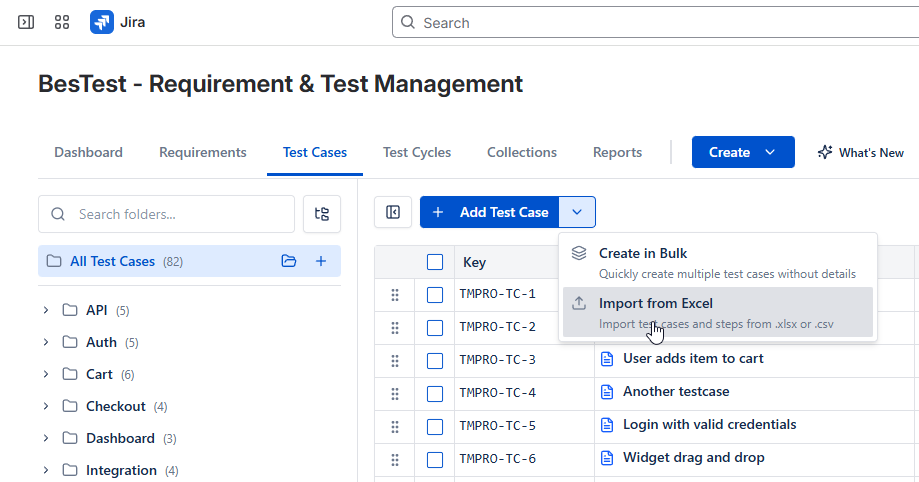
Start importing by selecting Import on Test Cases tab.
Test Case Import Template
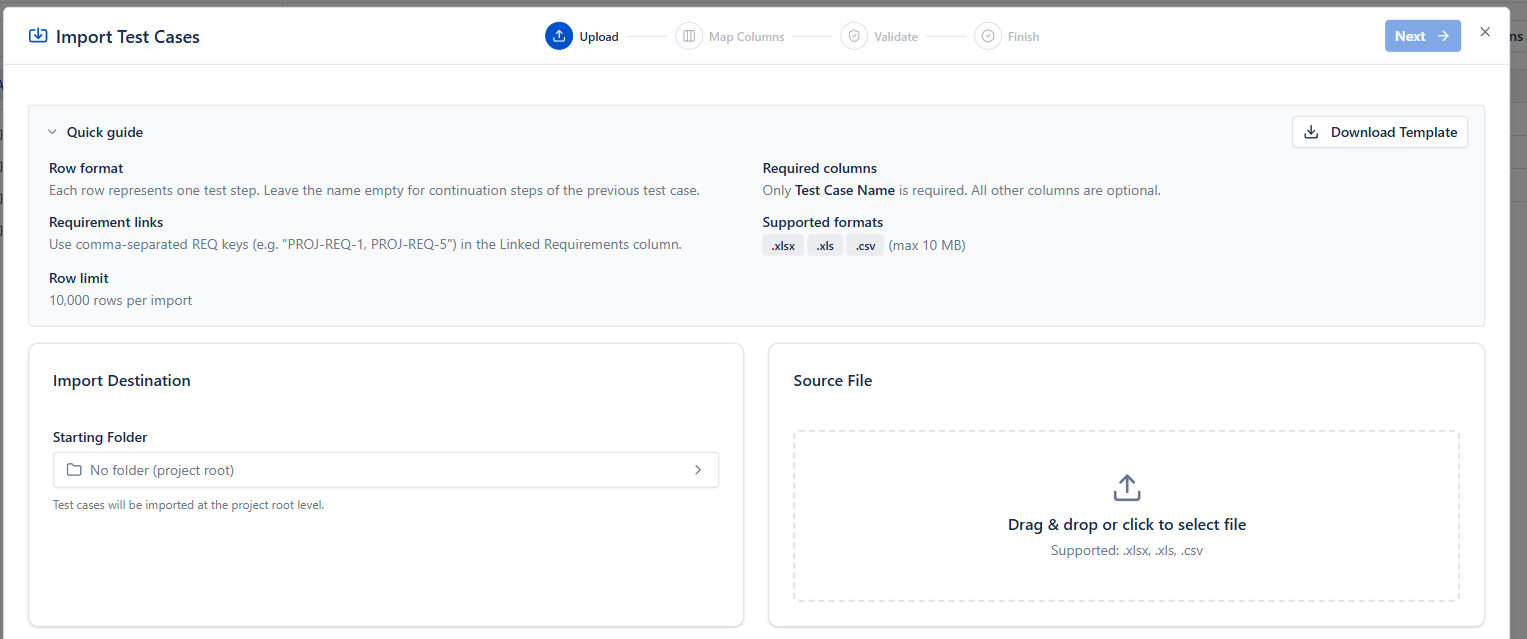
Import template always available with the Download Template button (it is a really simple Excel/csv).
Download Test Case Import Template
The Import is a 4 step process:
Upload the file
Select a starting folder (or leave empty) and upload your testcases with the filled template.
Map Columns
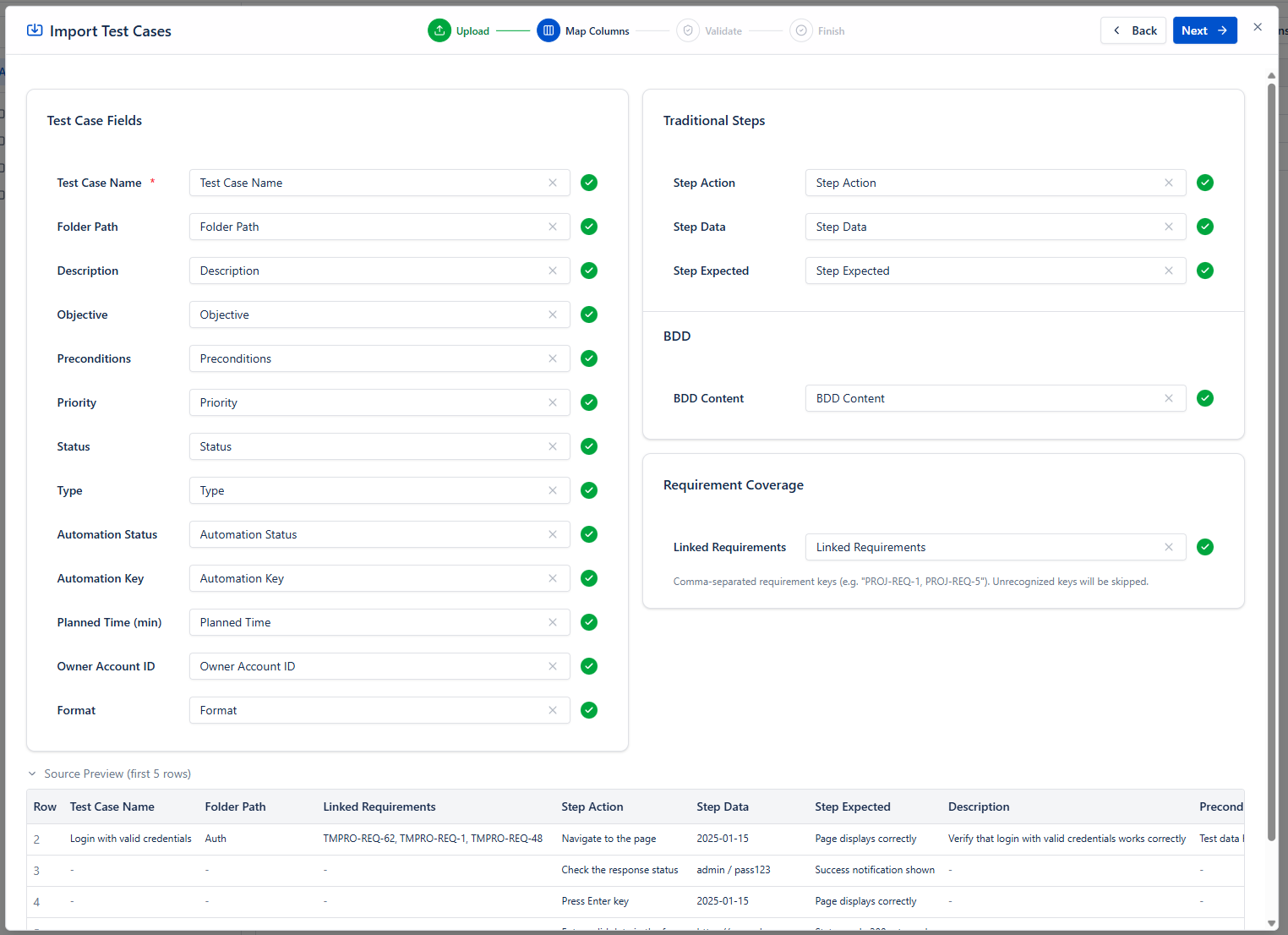
Connect your columns with the system fields. Import Basic attributes, test steps (traditional or BDD), and Already imported Requirement to auto-create coverage!
Validate
Built in validators testing the most common mistakes like invalid data for a fixed-data field, or a non-existing Owner ID.
Skip existing test cases: use this if your first try failed and need to import again, so that test cases with the same name in the same folder won't be imported again.
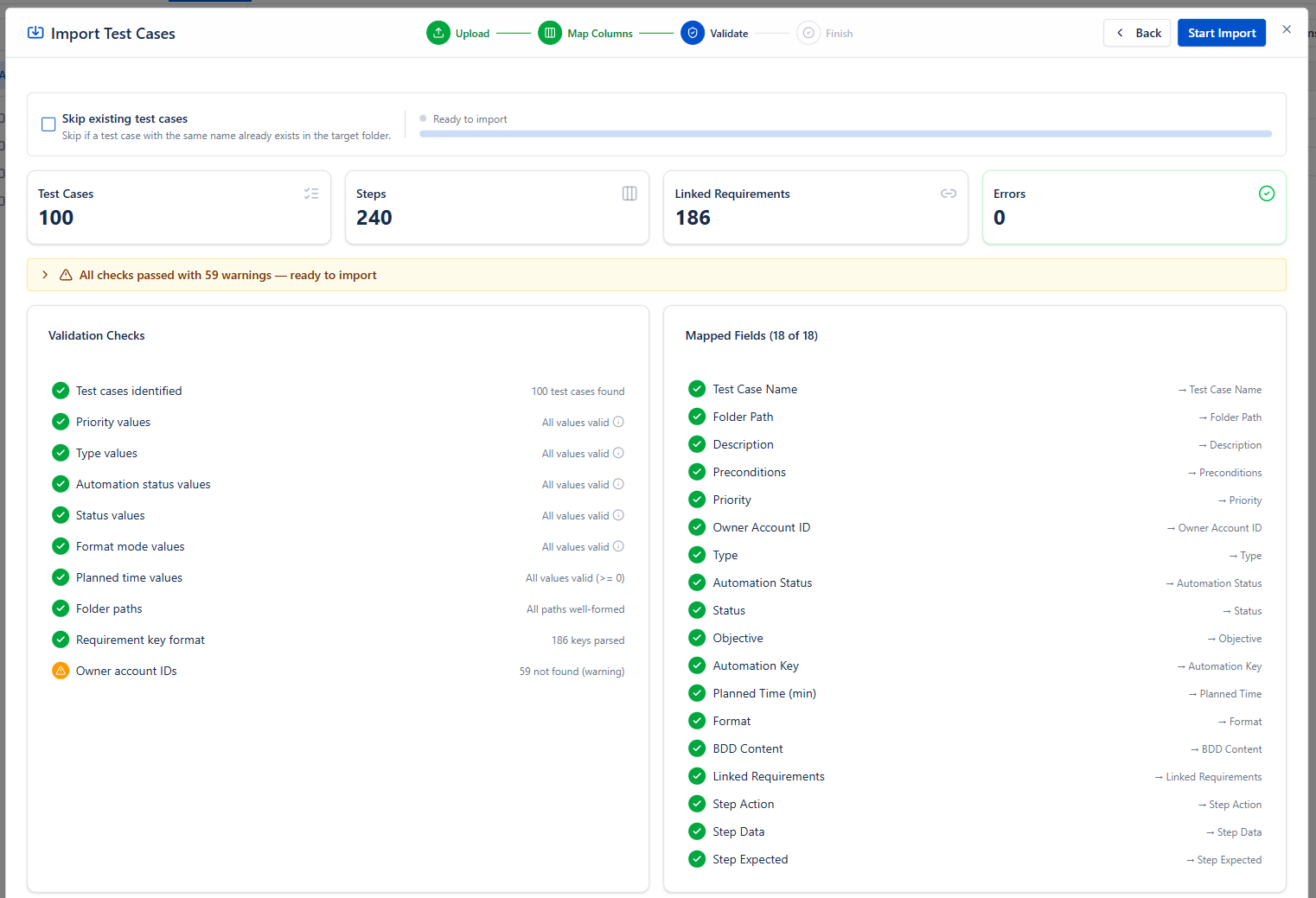
The import progressing in batches of 100 test cases, and the file limit is a maximum of 10.000 rows or 10Mb. If you have more, you need to create multiple import files.
Finish
When import done, you will get a summary of the result, with the list of imported test cases.
If you wish to import Requirements connected with your test cases, you can download the Result csv, so you have a table to connect your original test cases with their new TC Key -> that can be used in your Requirement Import csv!
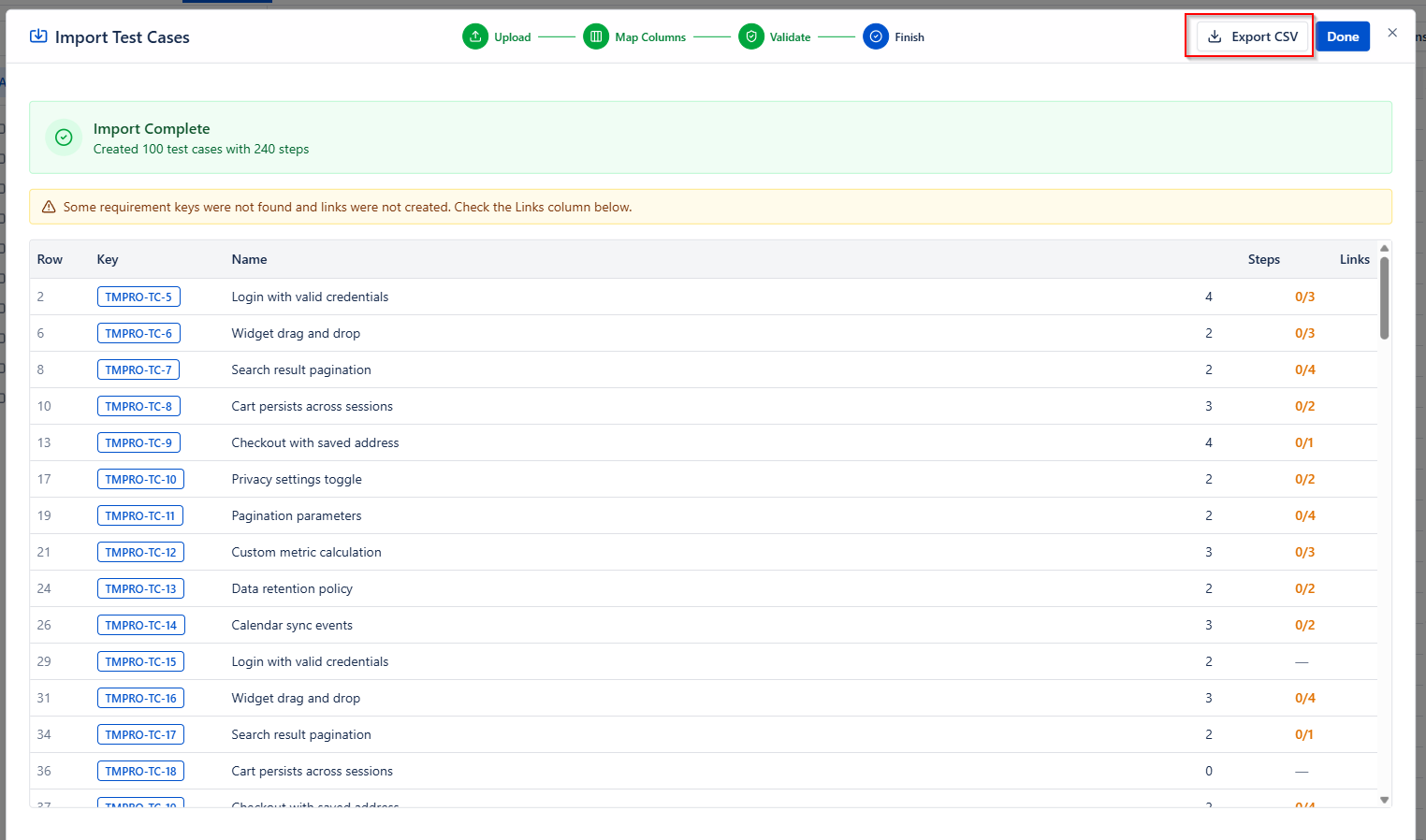
Any problem or error will be displayed on this screen. If you struggle with importing, feel free to contact support and we will help you moving in to your new home of QA 🫶
Importing Requirements
Similar as Test Cases, Requirements can be imported from your old system with a simple 4 step process.
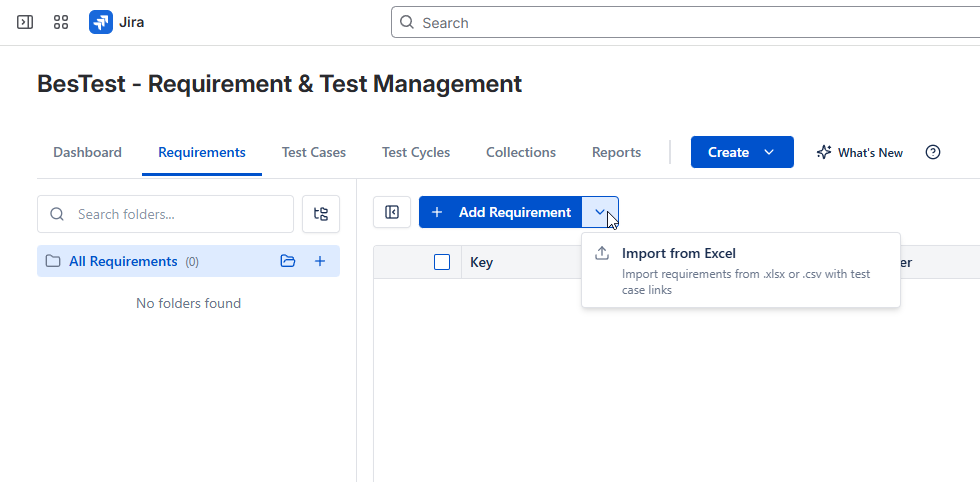
Requirement Import Template
Import template always available with the Download Template button (it is a really simple Excel/csv).
Download Requirement Import Template
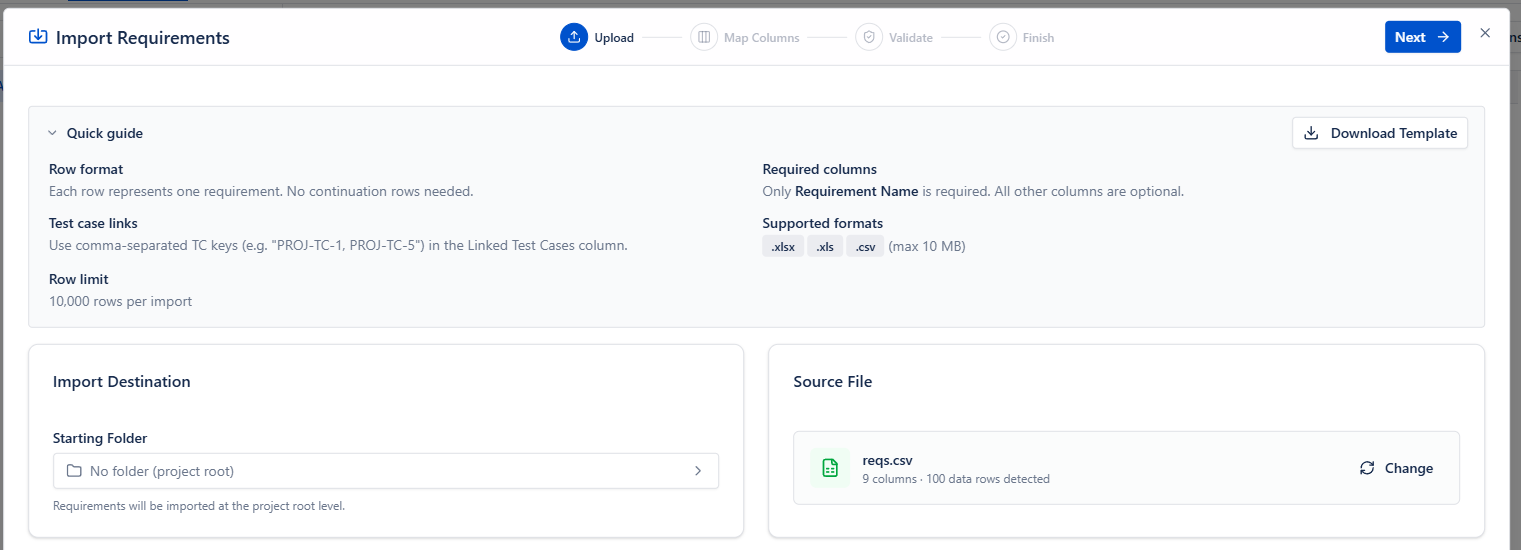
Upload the requirements file
Start by downloading the template file, and create your own Excel / CSV import file based on that! Drag in when ready to start!
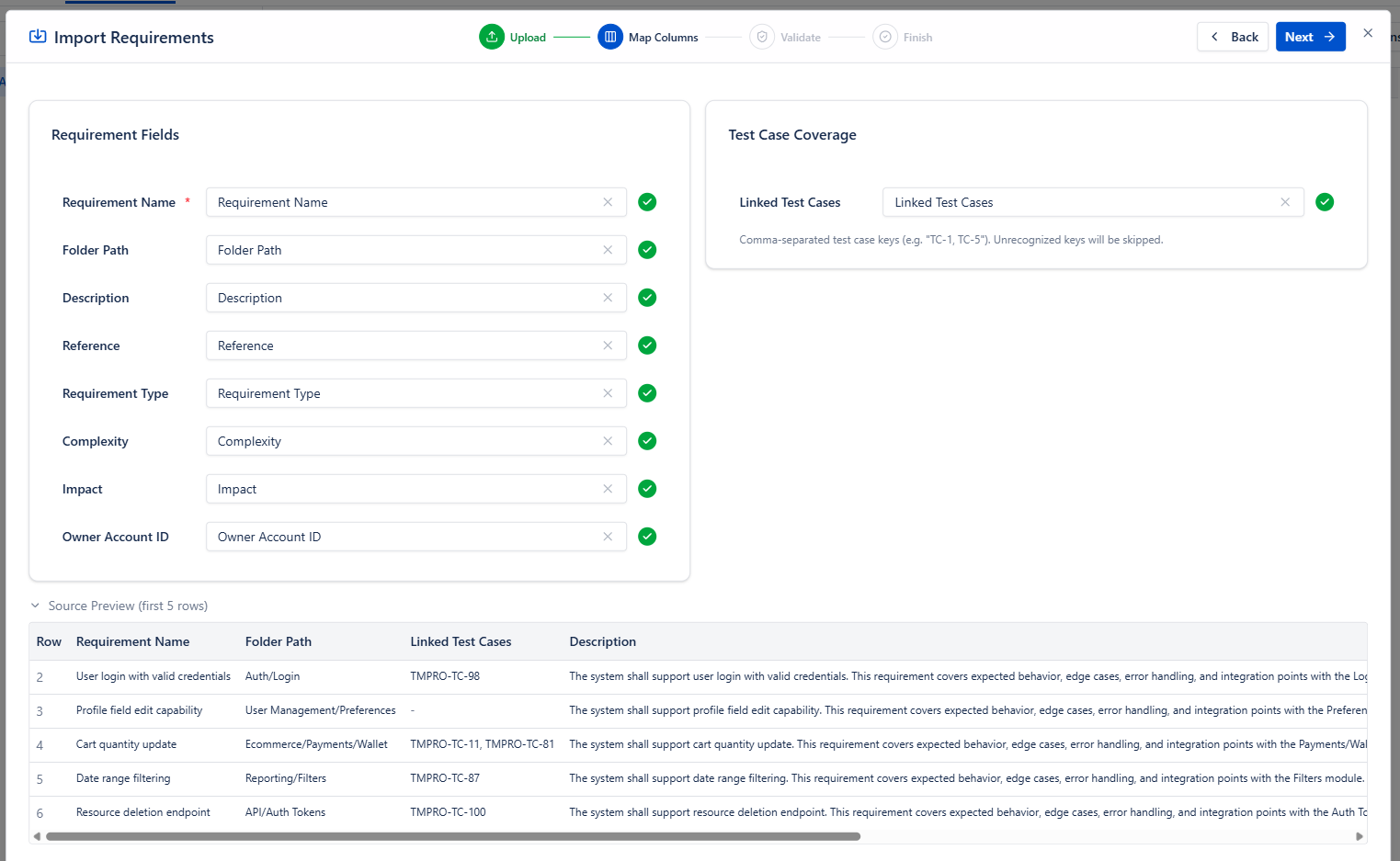
Map requirement columns
Requirements have fields and Linked Test cases. To get test cases keys, you can either download the import result after importing them, or simply export selected test cases. Linking Test cases - as most of the fields - is optional.
Validate requirements
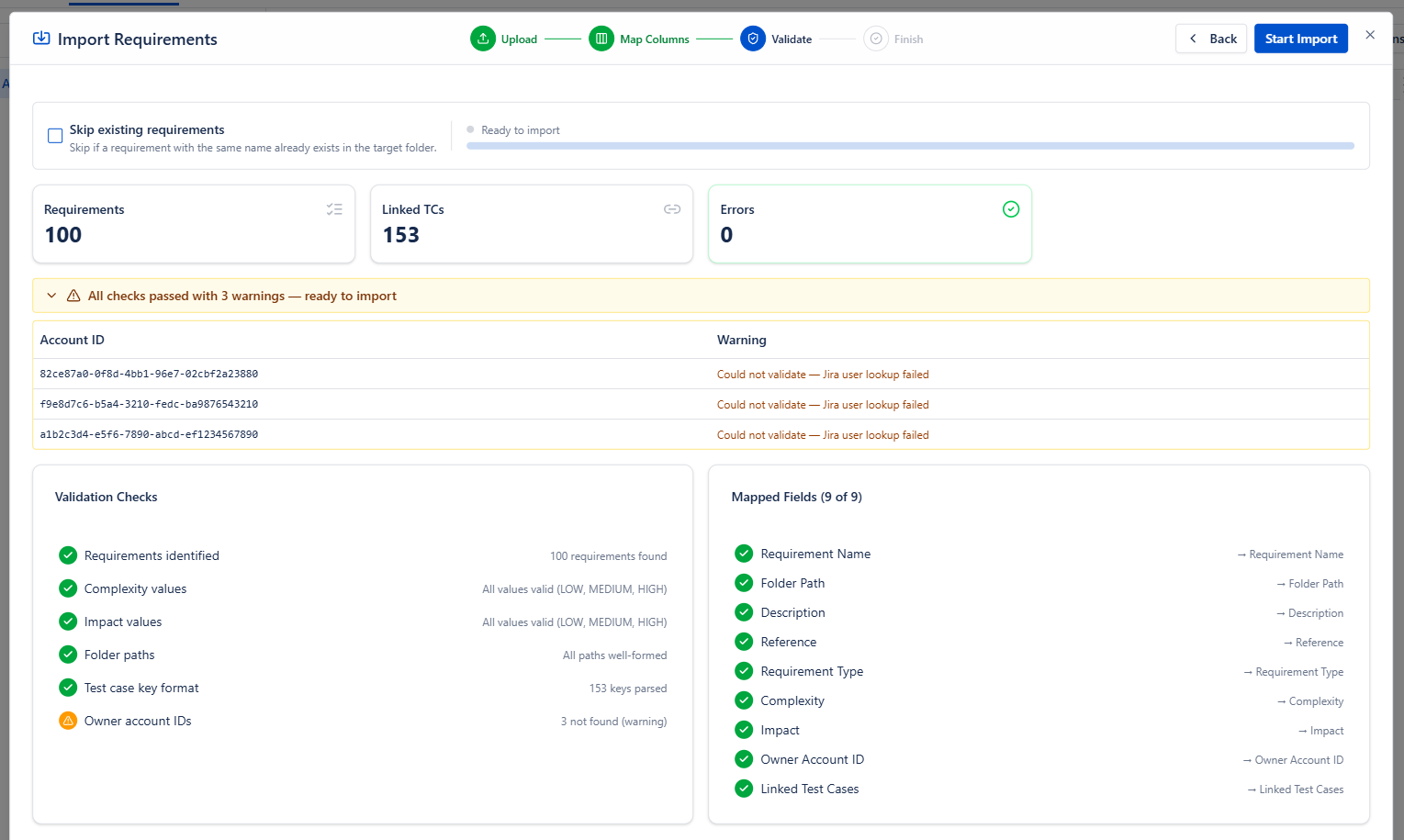
Let us check the most common mistakes to simplify your work with the built-in validators.
Skip existing requirements: use this if your first try failed and need to import again, so that requirements with the same name in the same folder won't be imported again.
Finish the requirement import
When import done, you will get a summary of the result, with the list of imported requirements.
If you wish to import Test Cases connected with your Requirements, you can download the Result csv, so you have a table to connect your original requirements with their new REQ Key -> that can be used in your Test Case Import csv!
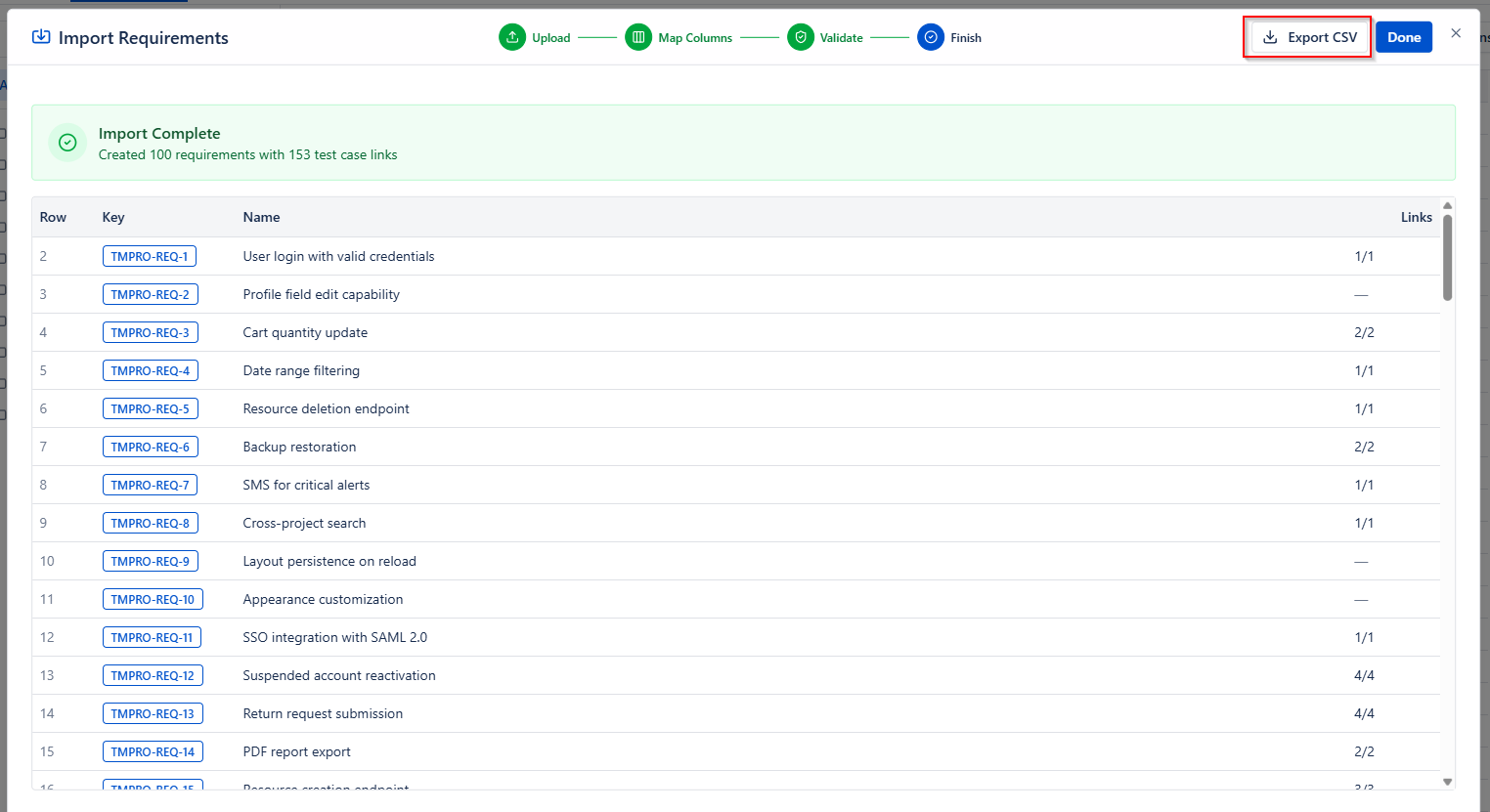
Any problem or error will be displayed on this screen. If you struggle with importing, feel free to contact support and we will help you moving in to your new home of QA 🫶
Exporting Requirements and Test Cases
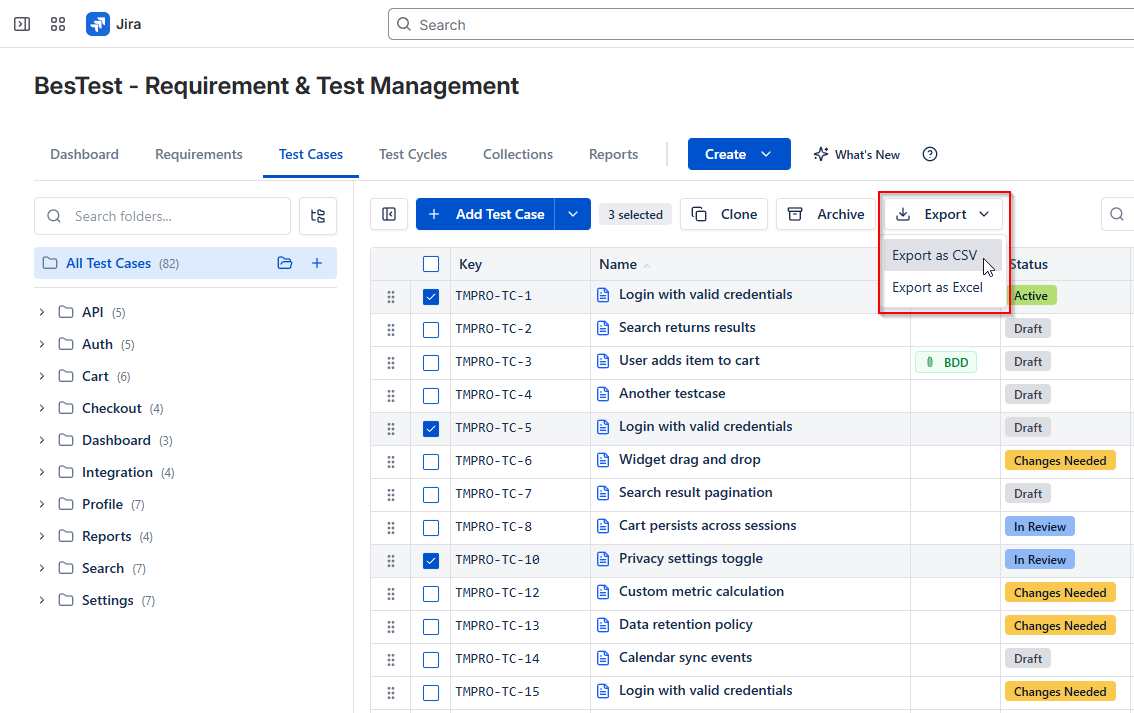
Test Cases and Requirements also can be exported. This is useful when you
- moving between instances (from testing to prod)
- want to store your assets out of Jira as well
You can select items in the catalog then export in CSV or Excel.